VILLAGE

Family Management App


It takes a village.

Let us be part of yours.

The Product

Village is a mobile schedule management app designed for parents and families with lots of activities to coordinate and never enough time in the day

The Problem

With the hustle and bustle of modern life, it is harder now than ever to manage the full schedules of our busy kids. Single and partnered parents alike need help keeping track of all the places they need to be and how they’re going to get there. 

The Goal

Create a mobile product that allows for quick and easy management of family activities so that nothing is forgotten, and everyone’s needs are met.

Duration

August 2025- November 2025

My Role

This is an individual project that allowed me to gain experience in each step of the design process as a UX design student.

Responsibilities

Conduct and analyze user research

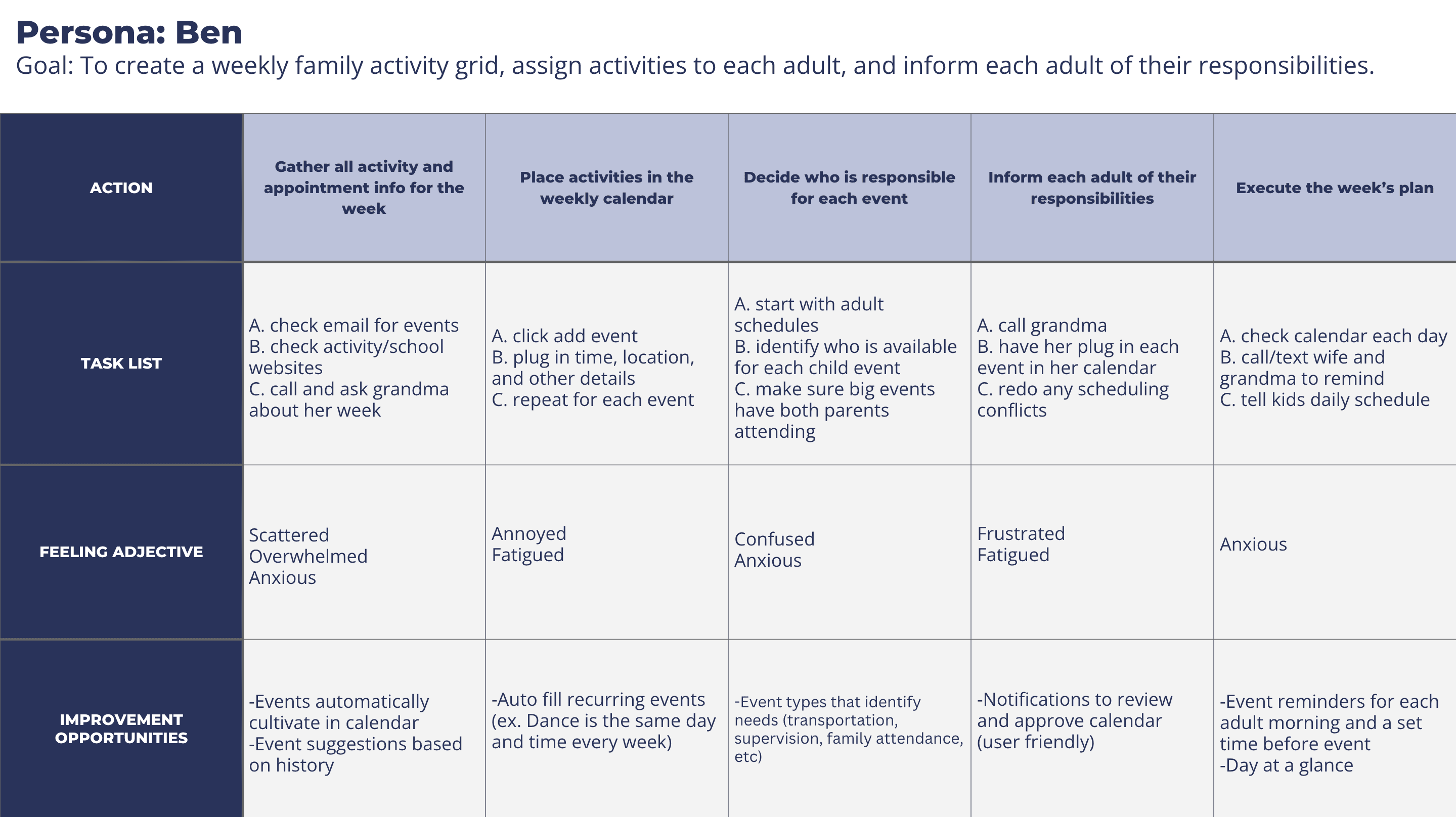
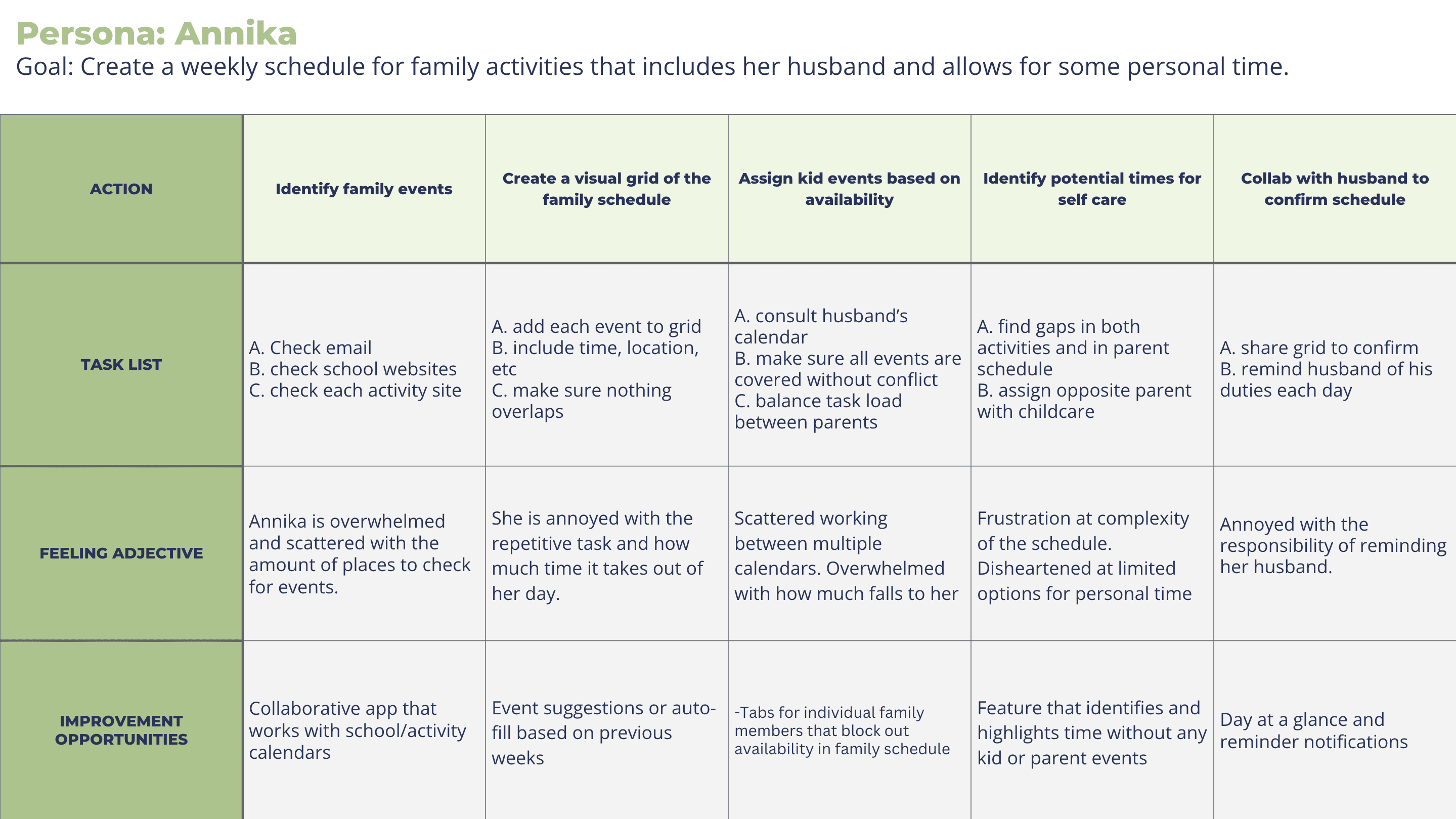
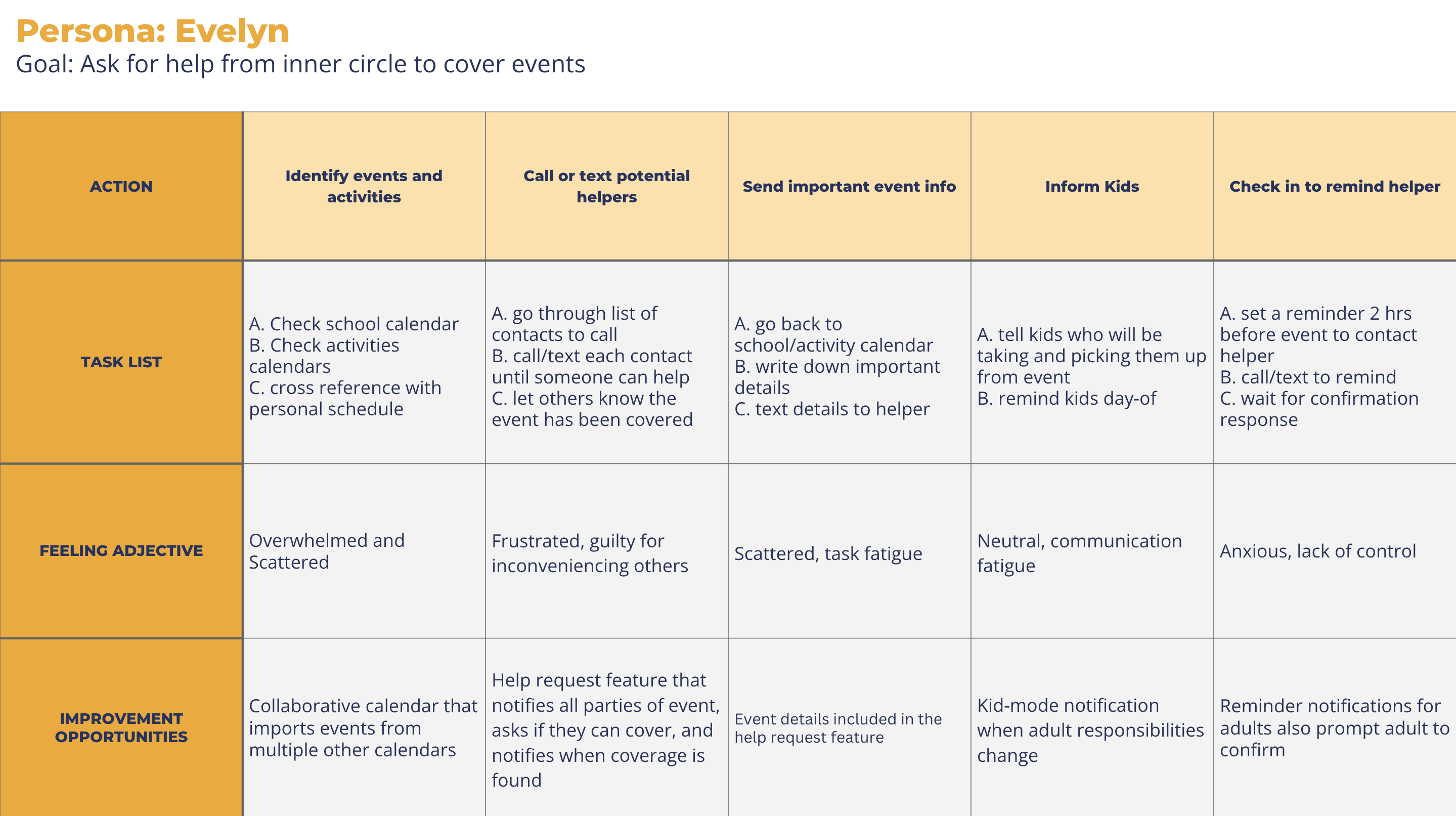
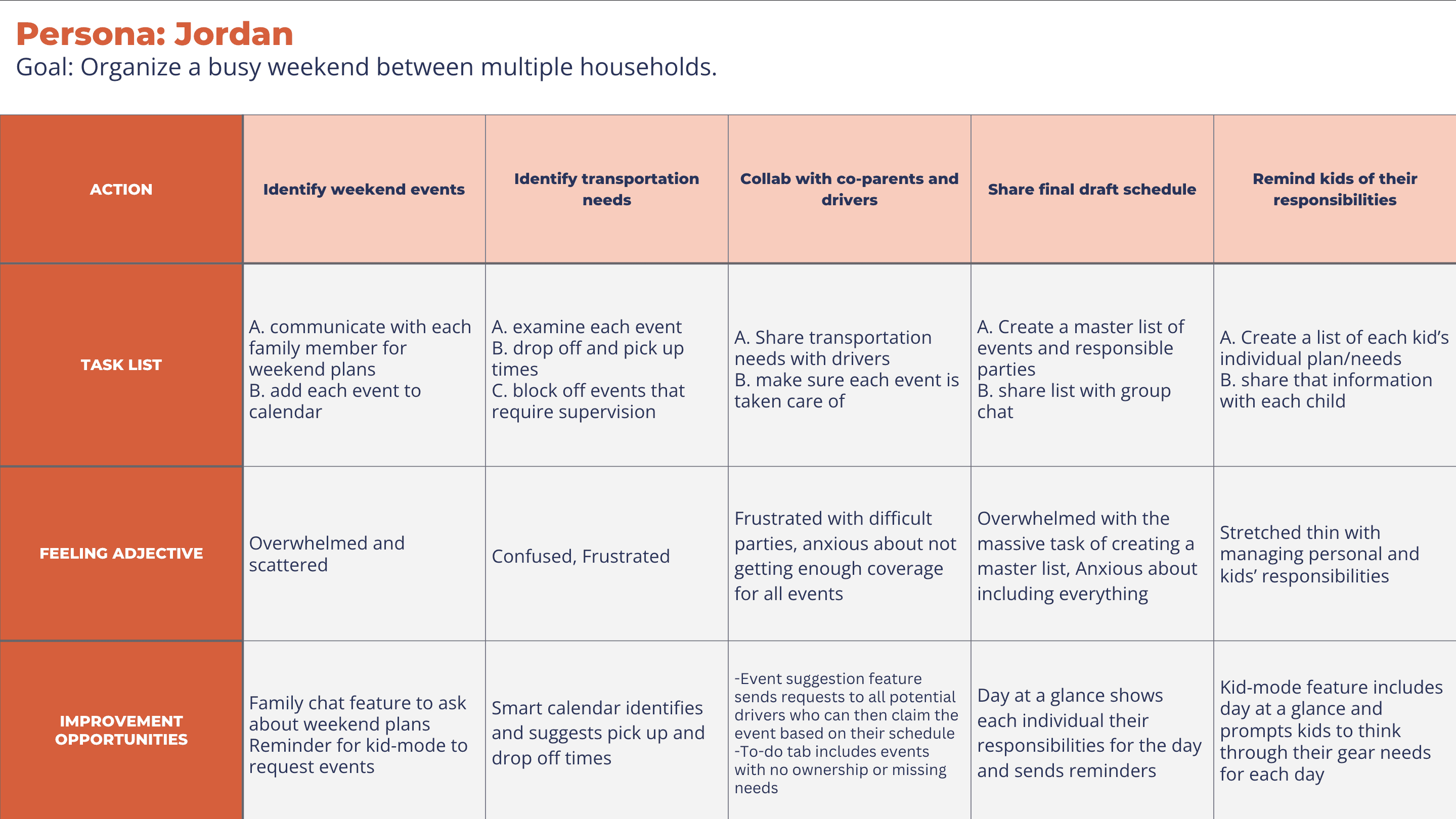
Create personas, user journeys, empathy maps, and user flows

Wireframing

Create high and low-fidelity prototypes

Usability  testing

Understanding the User

  • User Research - Personas - Problem Statements - User Journey Maps - User Flows - Storyboards - User Research - Personas - Problem Statements - User Journey Maps - User Flows - Storyboards -

Research Summary:

To understand user needs and frustrations, I conducted foundational research through interviews. I wanted to gain insight into the challenges users face with managing their families schedules as well as any needs that aren’t being met with the tools they currently use. 


Pain Points:

1

Gathering info from

too many places

Every school, activity, and workplace has their own calendar system and it takes a lot of time and energy to keep track of each one and update the family calendar

2

Looping in the tech-averse

Users still learning to use technology can struggle with more complicated calendar apps, instead relying on family organizers to communicate directly

3

Difficulty sharing responsibility

Many systems end up with one person feeling solely responsible for managing the family and “owning” the shared calendar 

4

Last minute

scrambling

With multiple parties involved in an event or activity, it can be difficult to communicate and coordinate effectively, sometimes leading to things falling through the cracks

Personas:

Problem Statement: Ben is a busy dad of 2 young children who needs a dual-mode management software because of his mom’s limited technology comfortability.

Problem Statement: Annika is an overwhelmed stay at home mom who needs a simple way to delegate parenting tasks so that she feels less like she’s doing it all alone. 

Problem Statement: Evelyn is a legal guardian to her grandkids who needs a clear and simple tool to centralize activities and loop in extra help so that she worries less about falling behind. 

Problem Statement: Jordan is a divorced dad who needs a shared and kid friendly platform so that every member of the family can take on more responsibility with less co-parent conflict. 

Journey Maps

Storyboards

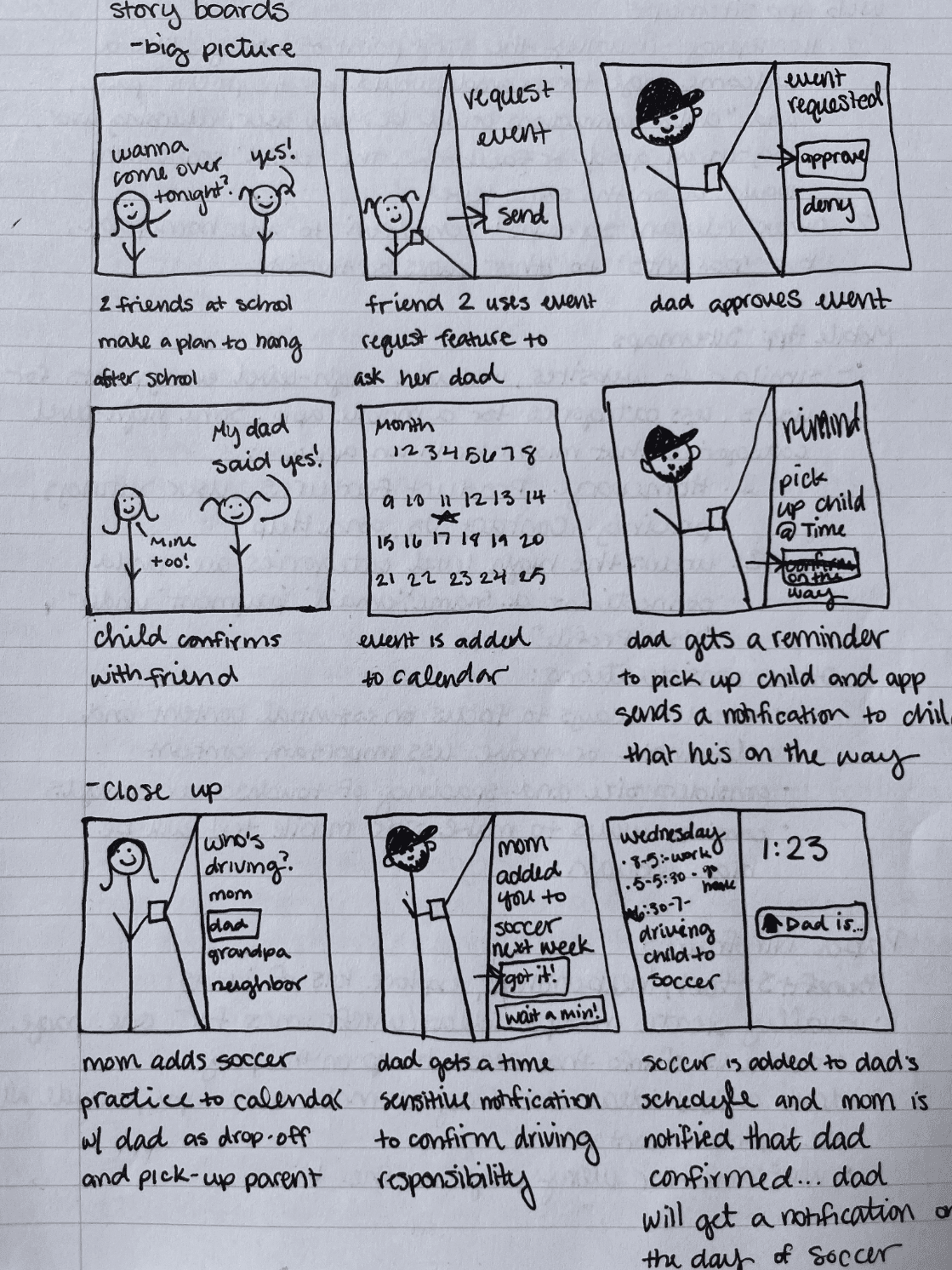
I also used storyboards to understand my users and the core tasks they’d be using my product to accomplish from various types of devices.
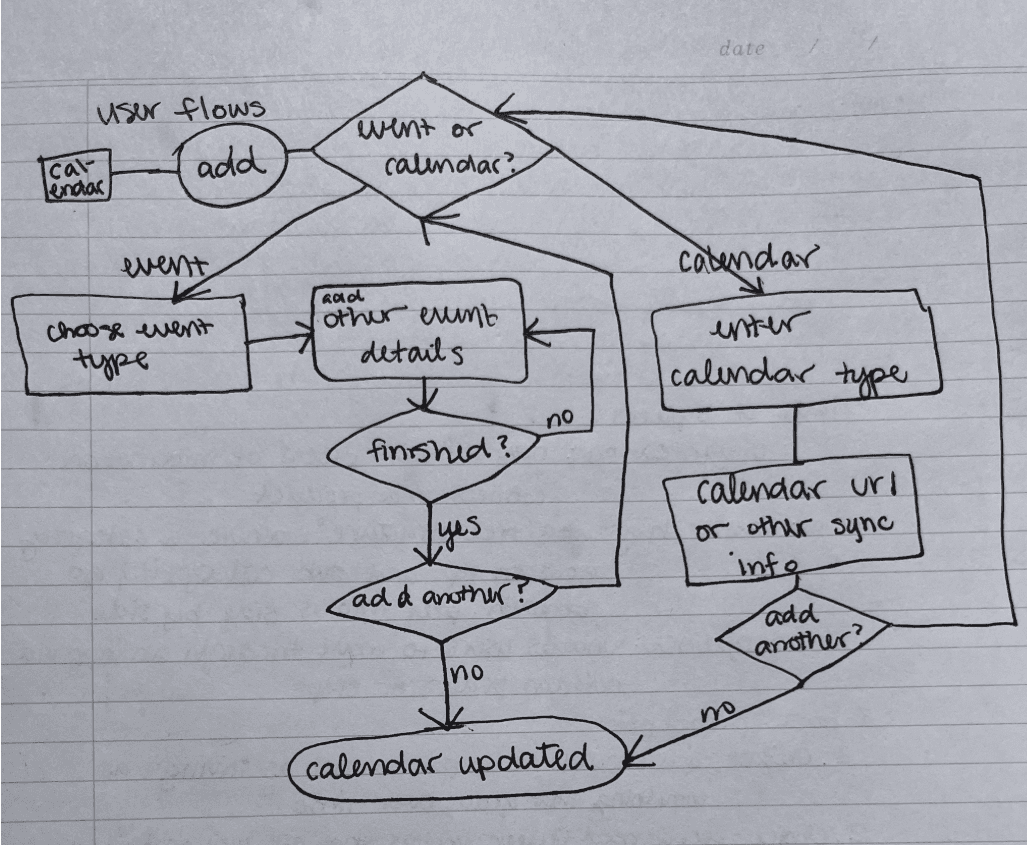
User Flows

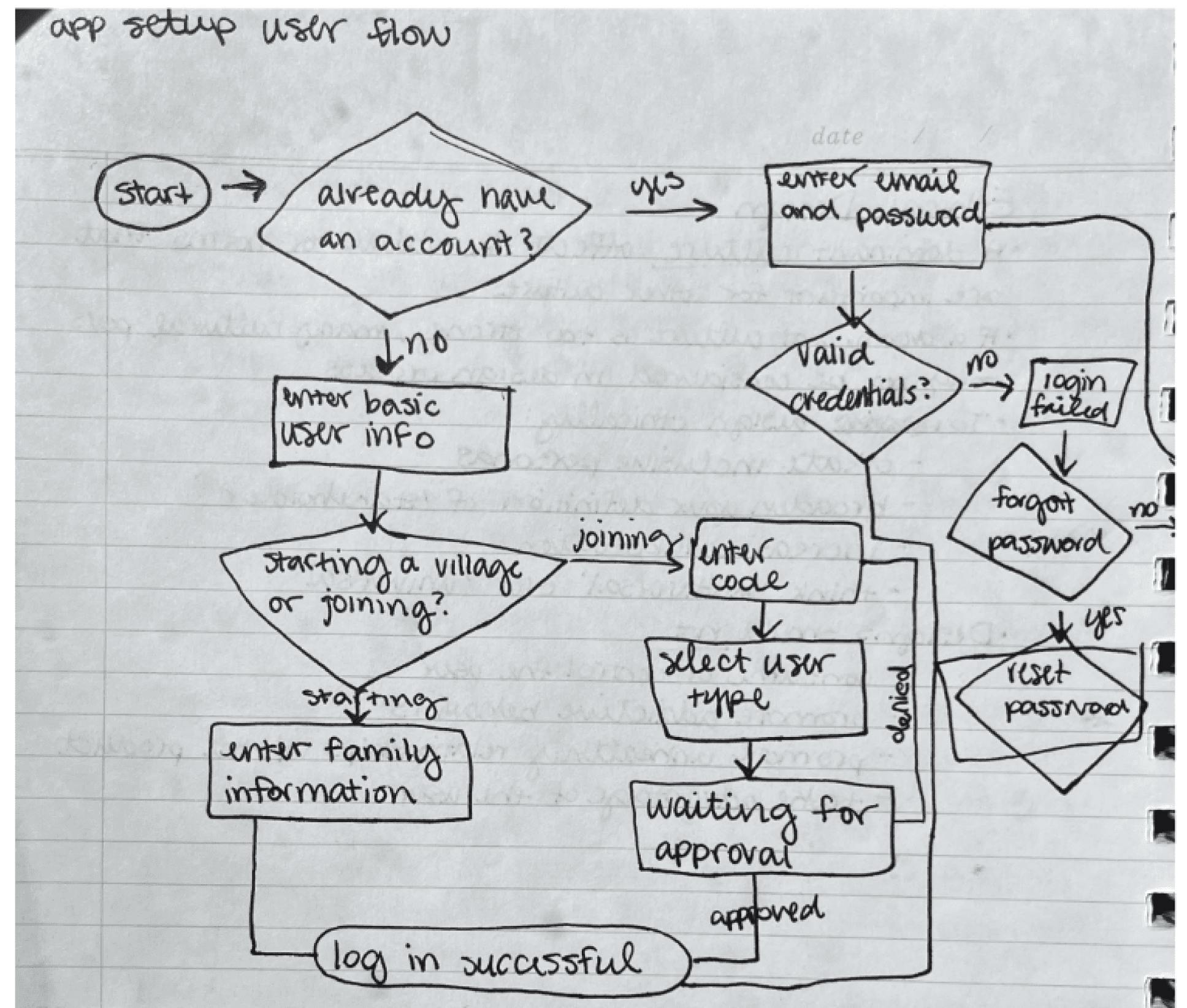
To help outline each step involved in a task, I created flows for my users main goals. 
Starting the Design

  • Paper Wireframes - Digital Wireframes - Low Fidelity Prototype - High Fidelity Prototype - Usability Studies - Paper Wireframes - Digital Wireframes - Low Fidelity Prototype - High Fidelity Prototype - Usability Studies

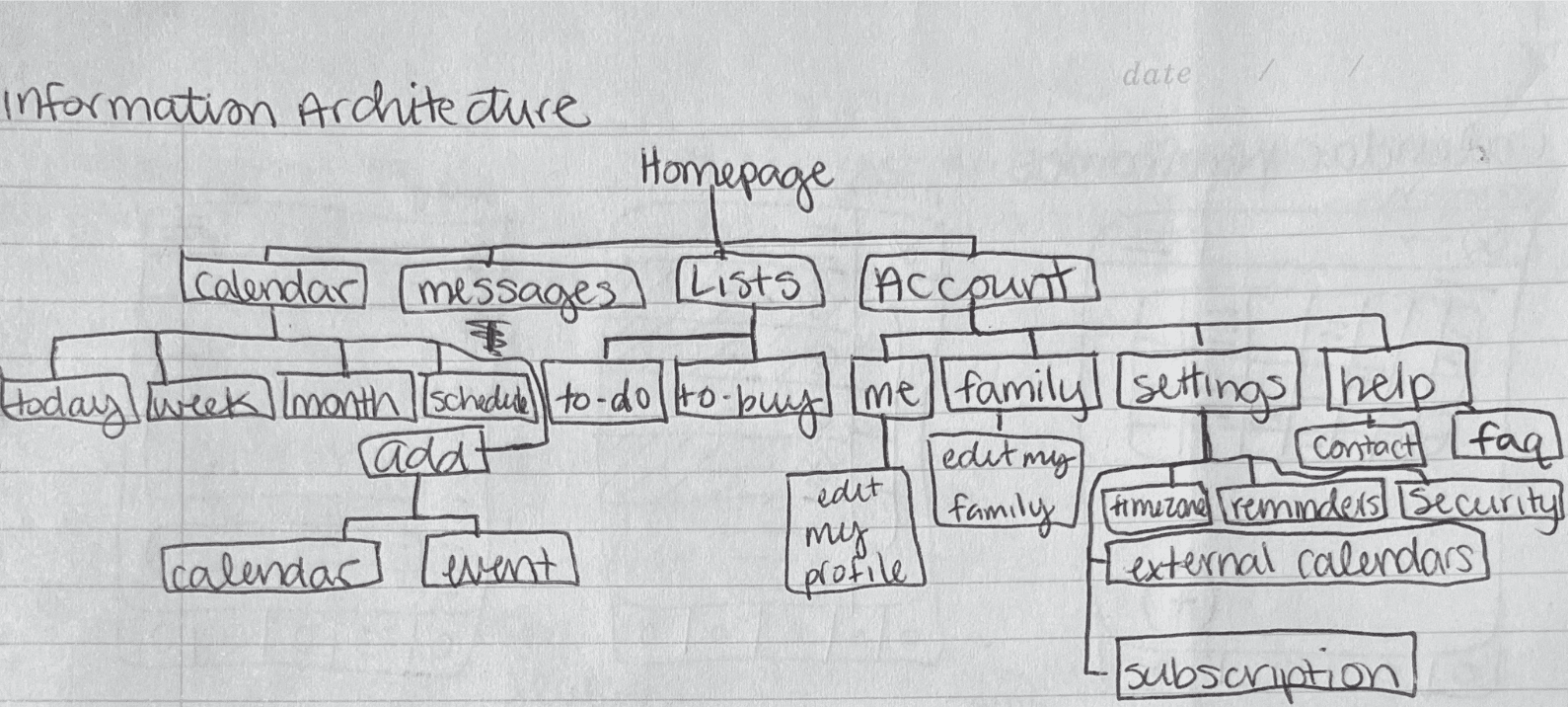
Information Architecture

As a part of preparing for wireframing, I created an information architecture to understand what my most important screens were and how they should connect.  

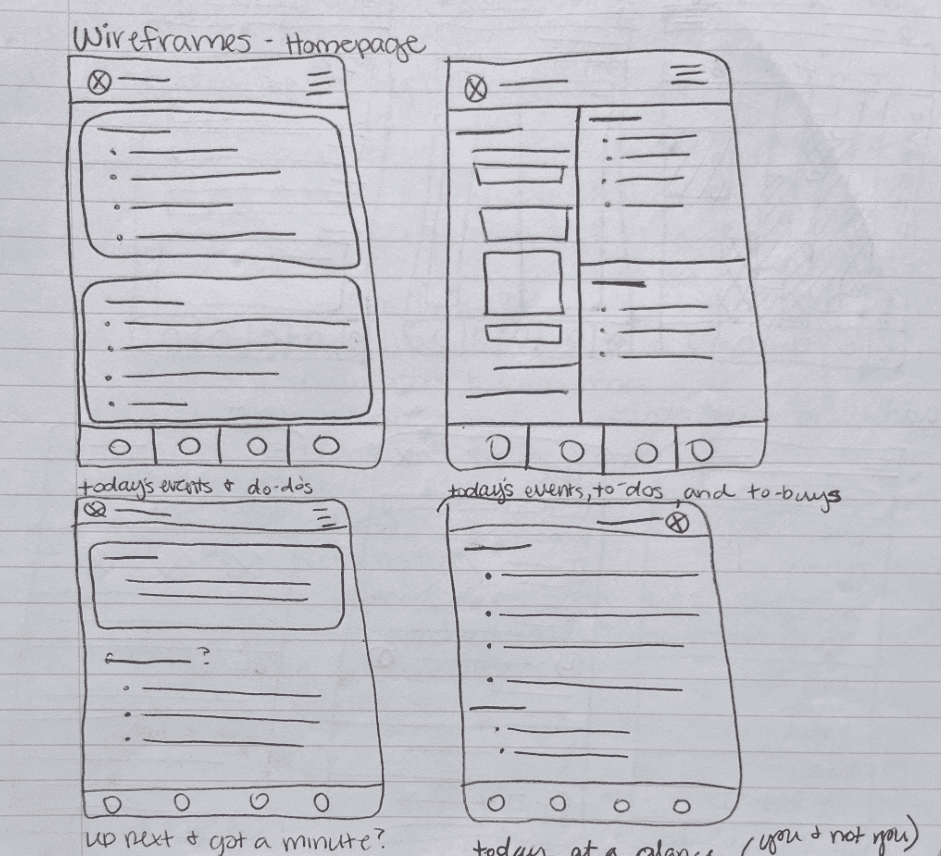
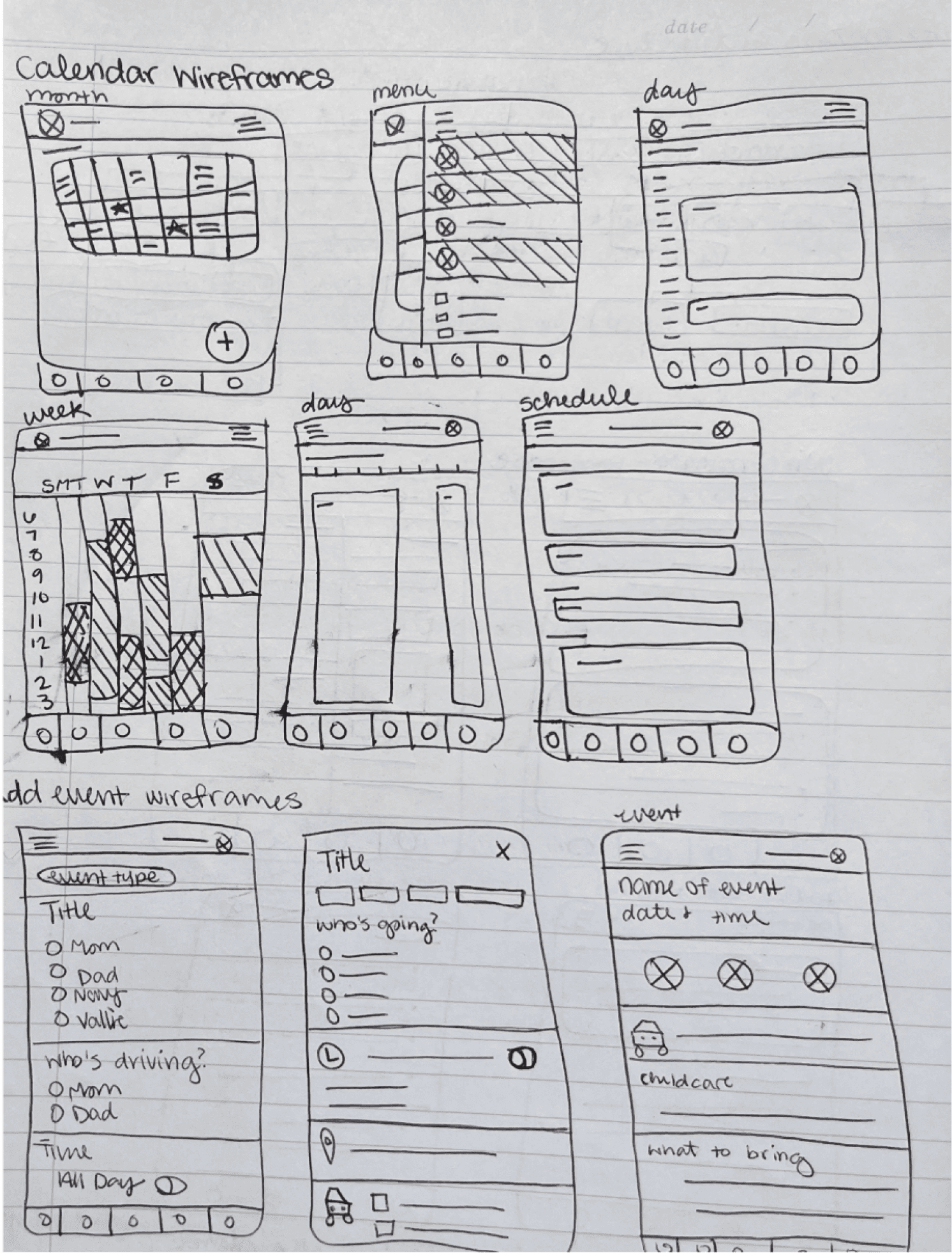
Paper Wireframes

Using my personas, journey maps, storyboards, and IA  to inform the core functions of the app, I began sketching wireframes with pen and paper, creating 2-3 ideas for each screen.

Low- Fidelity Prototype

I created a low-fi prototype out of my initial wireframes to test functionality and get user feedback before finalizing the design and features. 

Usability Study

I conducted a remote moderated usability study with 5 participants. Each session lasted 20 minutes as participants were prompted to complete core tasks within the prototype and give feedback after each one. At the end of the interview, participants also completed a system usability scale survey. The following patterns were used to form insights that could be factored into the next iteration of the product.

1

Icons were unclear for some users

Moving forward: any non-standard icons should have a label telling users what its for

2

Unclear how to add an event

Moving forward: The add button should be more emphasized 

3

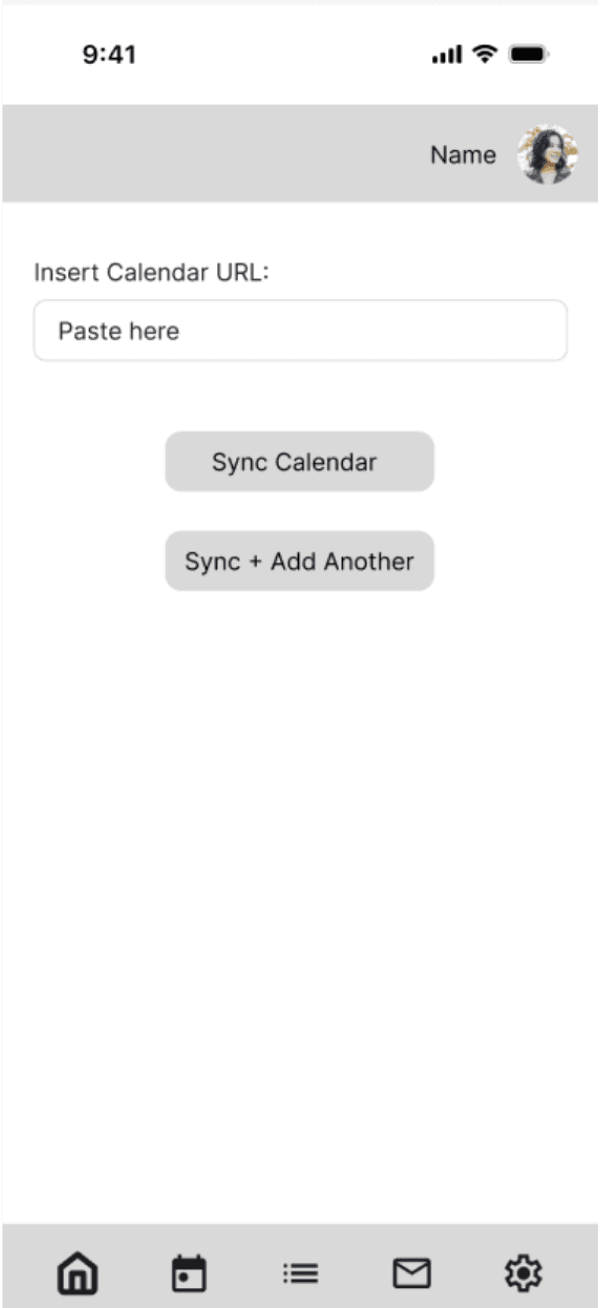
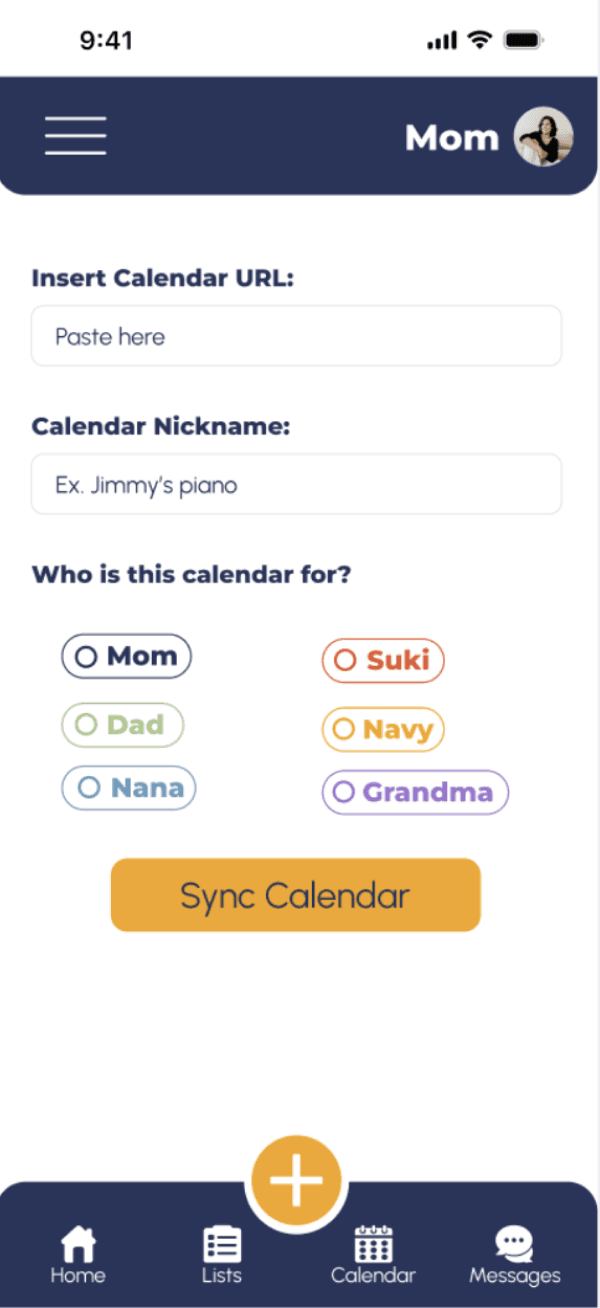
‘Add external calendar’ button is hard to find

Moving forward: the path to add an external calendar needs to be more intuitive

4

Users looked to settings first for utility tasks

Moving forward: The settings page should include a path to editing user permissions

Digital Wireframes

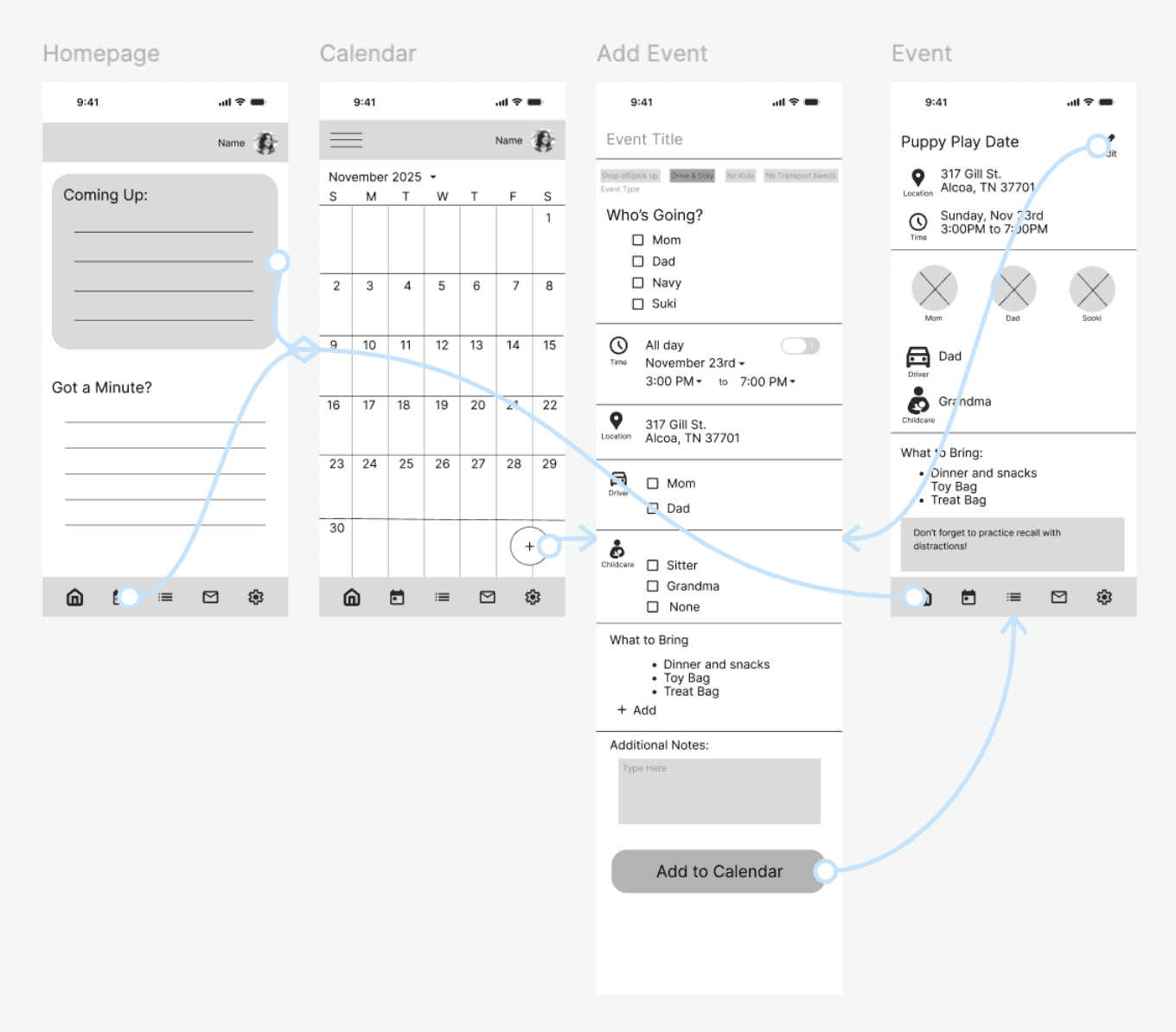
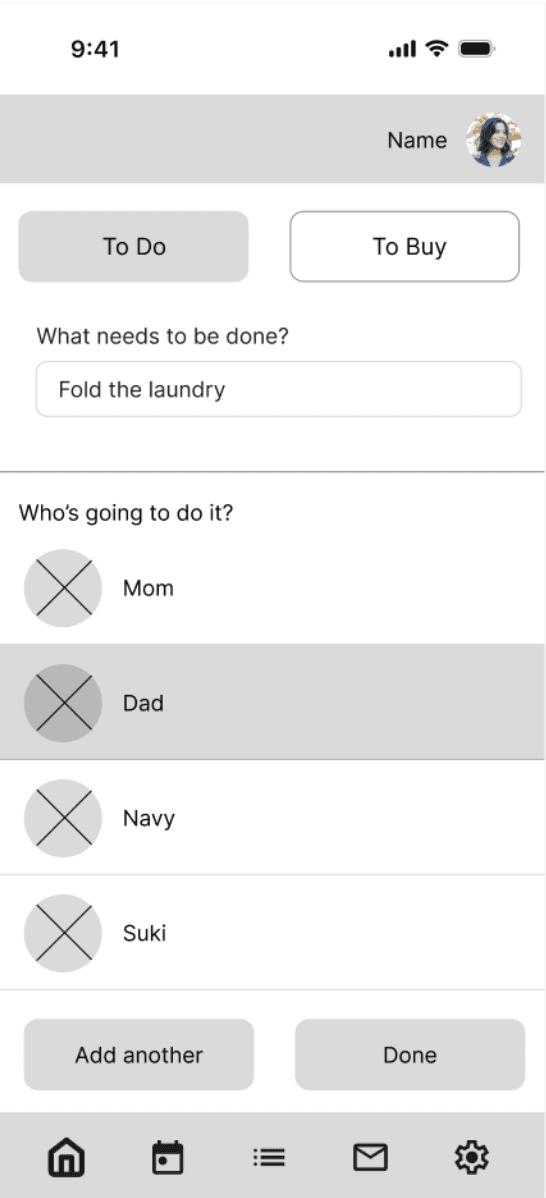
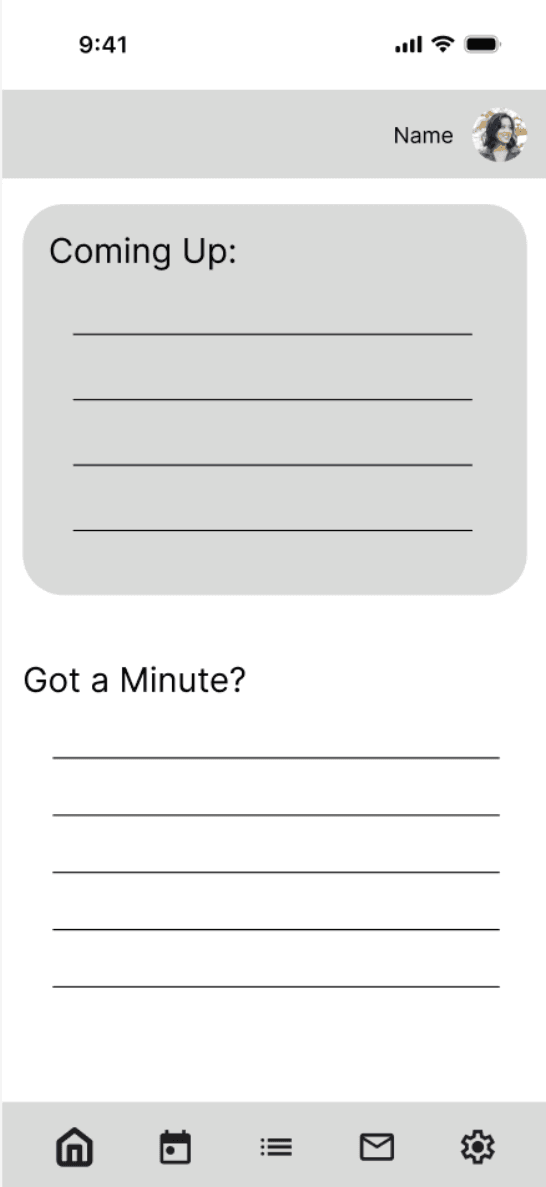
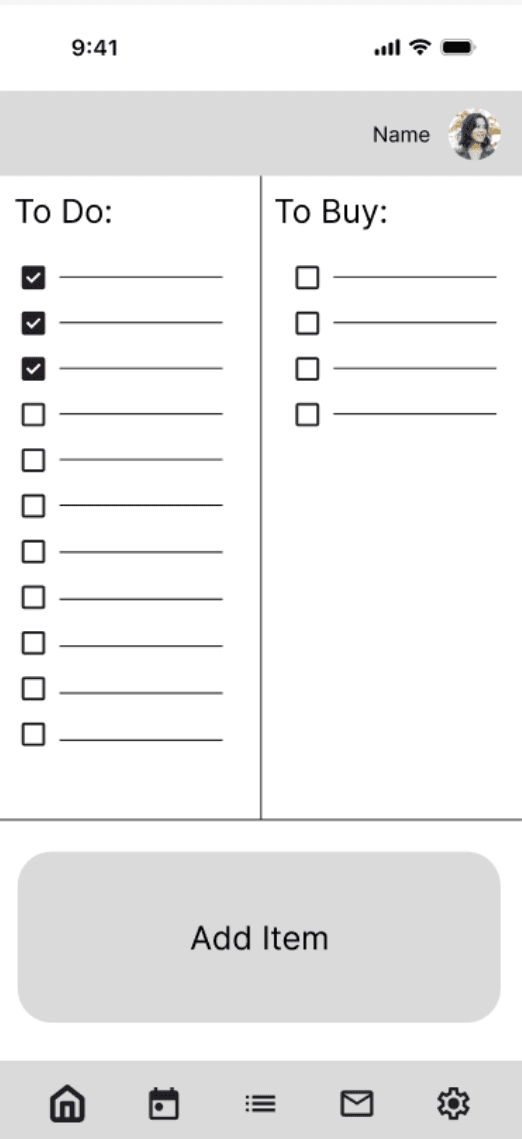
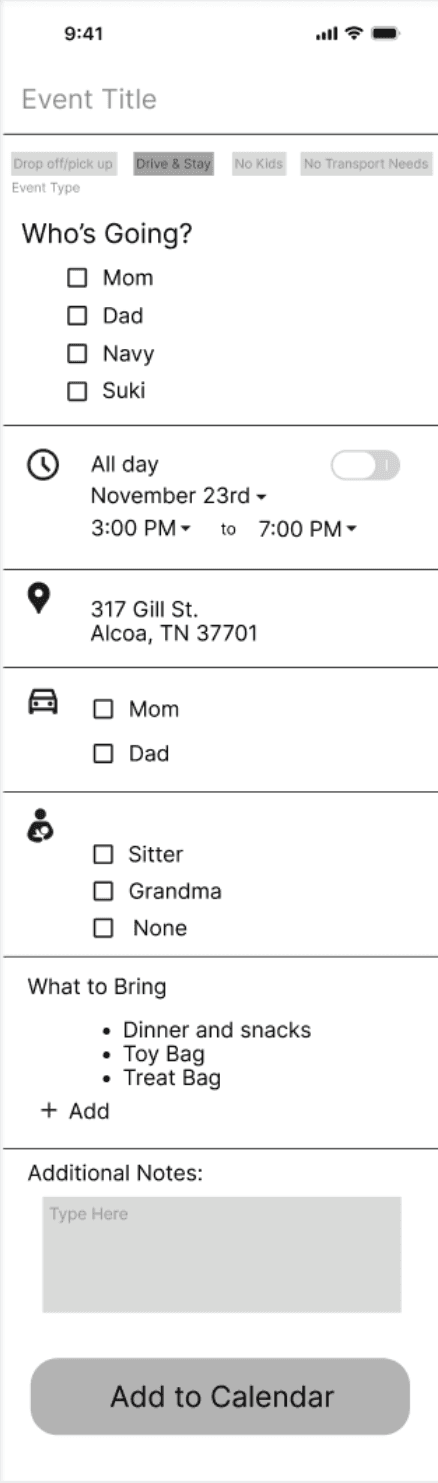
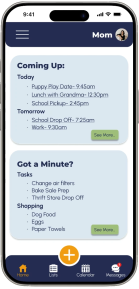
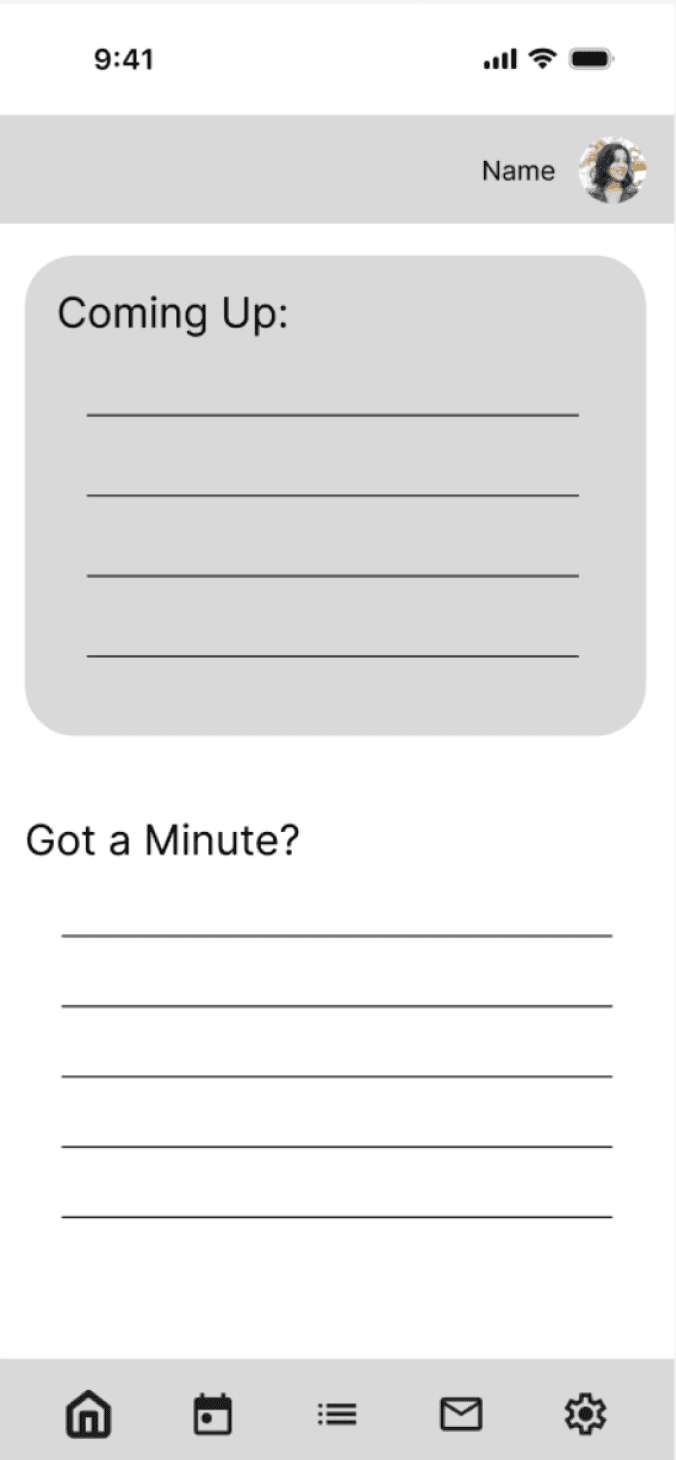
I used Figma to create digital wireframes for each screen. These are some of the final iterations of my digital wireframes. I wanted the design to prompt the user for all the necessary information for future success without feeling too overwhelming visually.

Large boxes on the homepage show the most pressing tasks and events

Friendly prompts make users feel like we’ve thought of everything so they don’t have to.

Large action buttons eliminate guesswork on how to edit and interact

2 column format allows the user to see all the most important info at the same time

Dividers break up content so the user don't feel overwhelmed with massive blocks of information

Call to action buttons are clearly labeled so the user knows what’s coming next

Refining the Design

Mockups

Based on insights from my usability studies, I transitioned my wireframes into mockup pages that better fit user needs and resembled the final product more closely. 


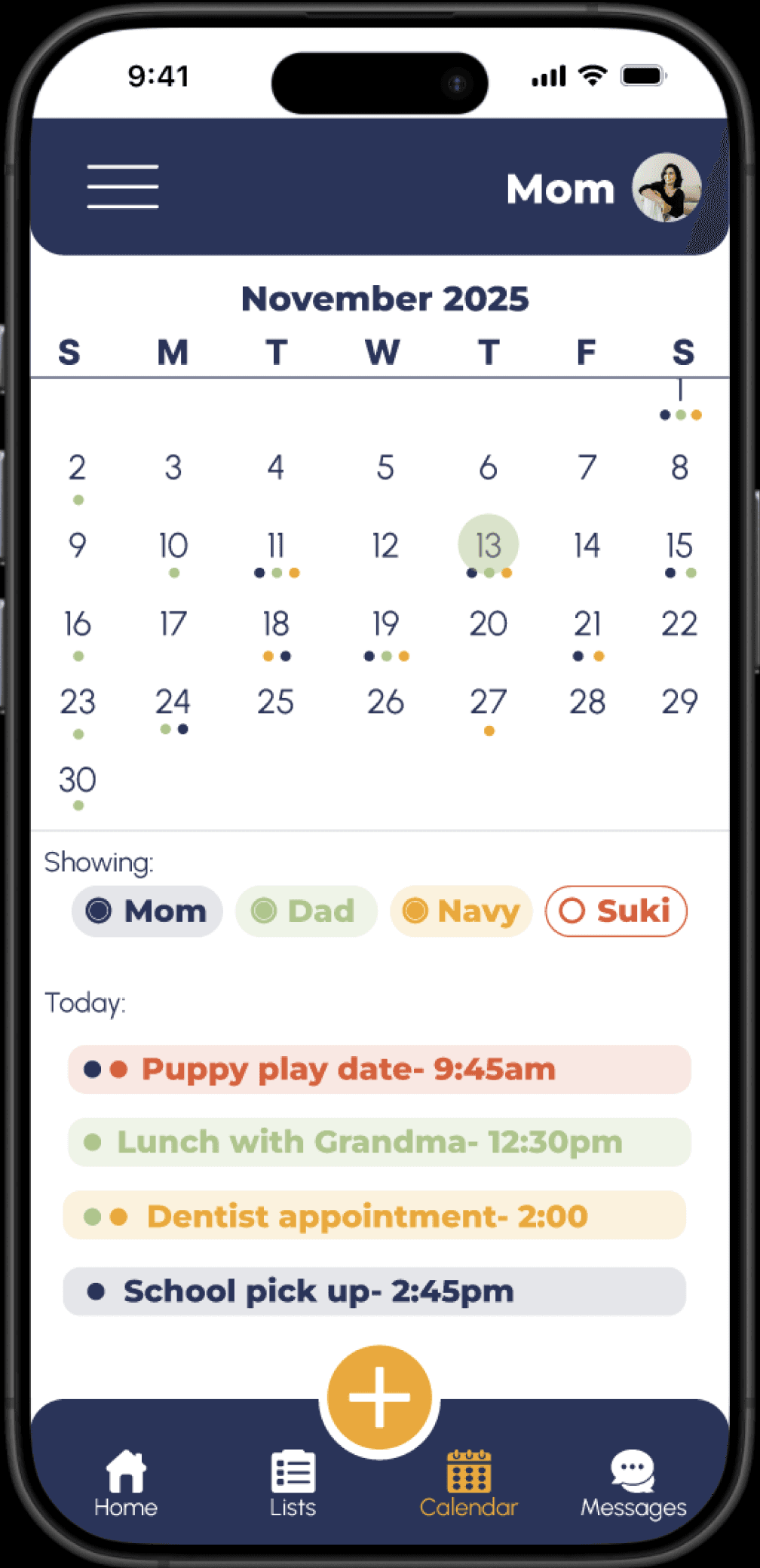
For the homepage, this included adding ‘see more’ buttons for clearer navigation, a hamburger menu, icon labels, and including an add button in the bottom navigation bar that will be visible on all app screens.

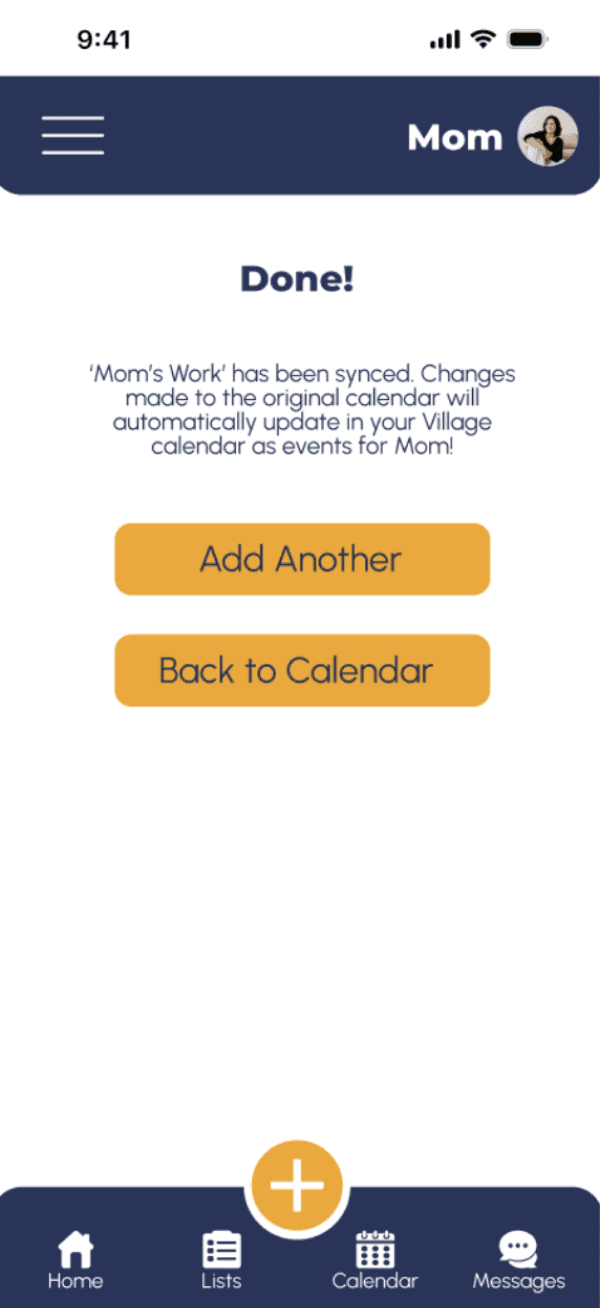
The external calendar form also got quite a few updates after the usability study. Those included adding inputs for a calendar nickname, selecting a person for the calendar to belong, and a confirmation page to let users know the form was submitted successfully
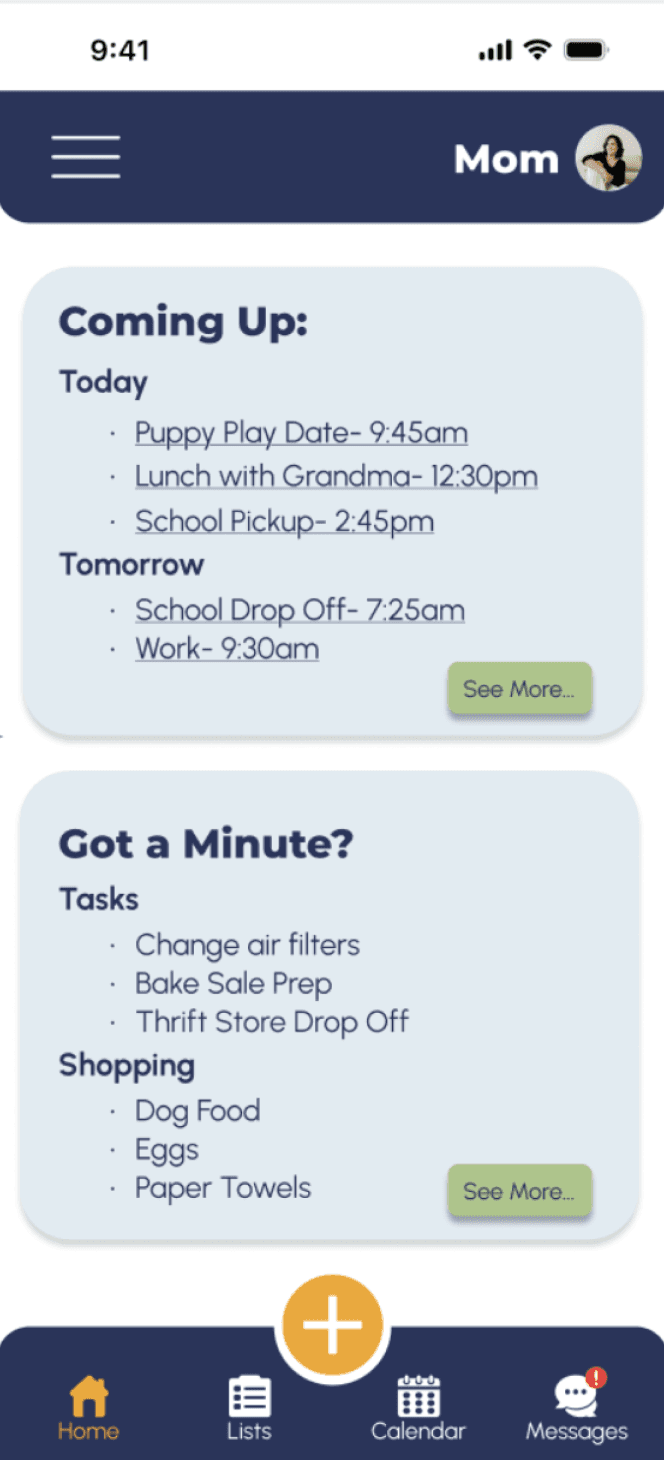
Before Usability Study:

After Usability Study:

Before Usability Study:

After Usability Study:

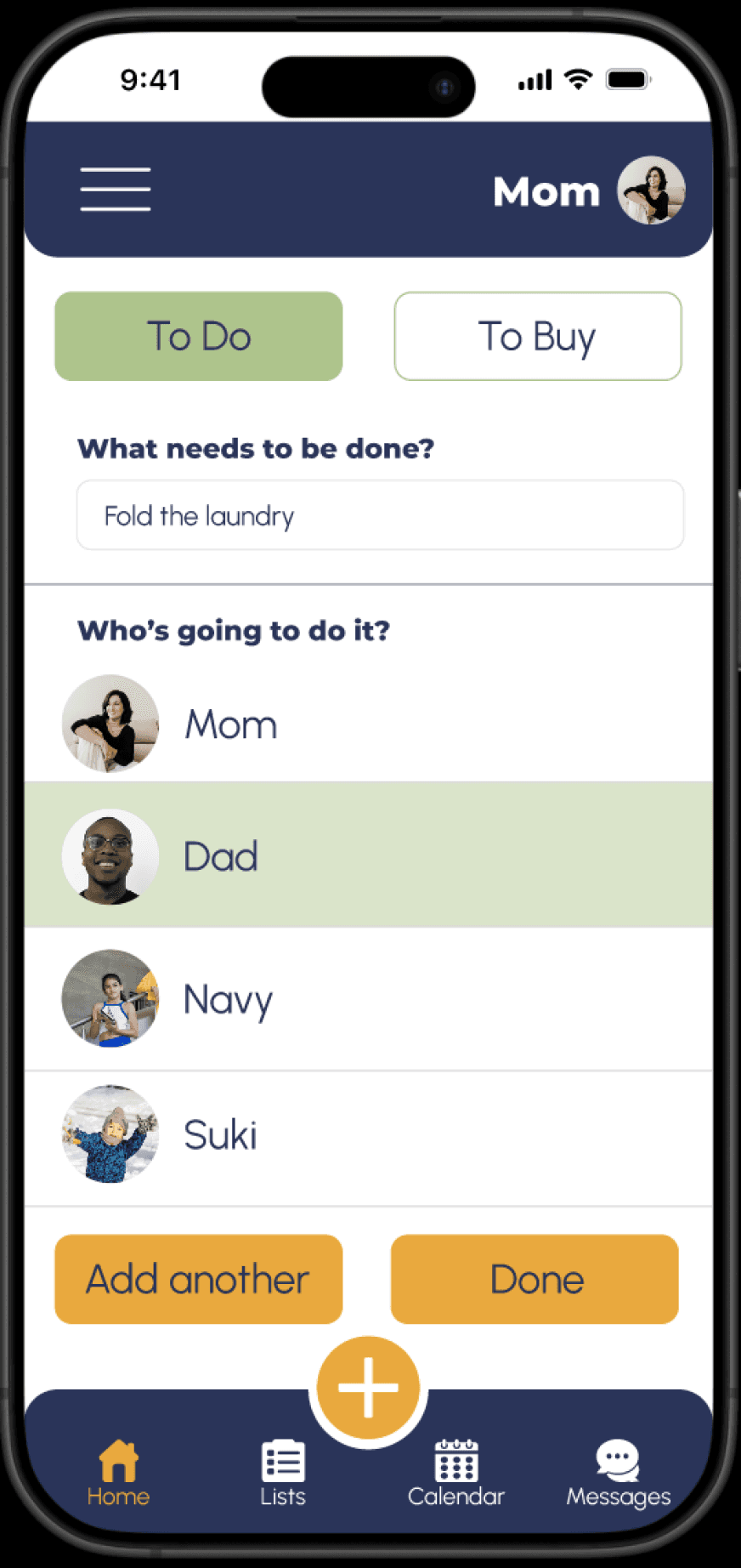
After finalizing the mockups, I linked the screens (and added a few) to create a hi-fi prototype that looks and feels like a final product. I used a color palette with bright primary colors for a simple, but playful visual experience.

High Fidelity Prototype

1

When choosing my color palette, I made sure my primary colors met WCAG AA guidelines, and that my text colors met AAA guidelines before building out my UI.

2

I used only two typefaces in order to keep the design simple and accessible. 

Both typefaces are sans serif to maximize the ease of reading for users with varying visual, tracking, or reading abilities.

3

All buttons and icons are clearly labeled both for users unfamiliar with technology and for users with assistive technologies like screen readers. 

Accessibility Considerations

Going Forward

  • Next Steps - Takeaways - Next Steps - Takeaways -Next Steps - Takeaways -Next Steps - Takeaways -Next Steps - Takeaways -Next Steps - Takeaways -Next Steps - Takeaways -

1

Share my designs with other UX/UI designers with more experience for feedback on how I can improve my design.


2

Update my designs based on that feedback to improve functionality

3

Use progressive enhancement to create a responsive web version of the product so that users can access it from any device at any time.

Next Steps

Takeaways

Impact

Parents and caregivers are stretched thin. Between work, personal and kid activities, keeping the household running smoothly, communicating with outside help, and keeping track of every email, invite, and shared calendar, families need a simplified single location to manage their very full schedules. To address this need, I created a collaborative, multi-modal app that can consolidate complex schedules and  allows for age-appropriate ownership from every family member.

What I Learned

As a beginning UX designer, this project gave me valuable knowledge and experience in each step of the design process, including but not limited to:

Gathering and implementing user input and feedback through each design step

Principles of effective and accessible design

Comfort navigating and designing with Figma

Let’s Connect!

As a beginning designer, I am always looking for feedback to improve my designs and process. Please reach out to share your thoughts!

  • Mockups - High Fidelity Prototypes - Accessibility - Mockups - High Fidelity Prototypes - Accessibility - Mockups - High Fidelity Prototypes - Accessibility