VILLAGE
Family Management
Website
VILLAGE
Family Management
Website
VILLAGE
Family Management
Website
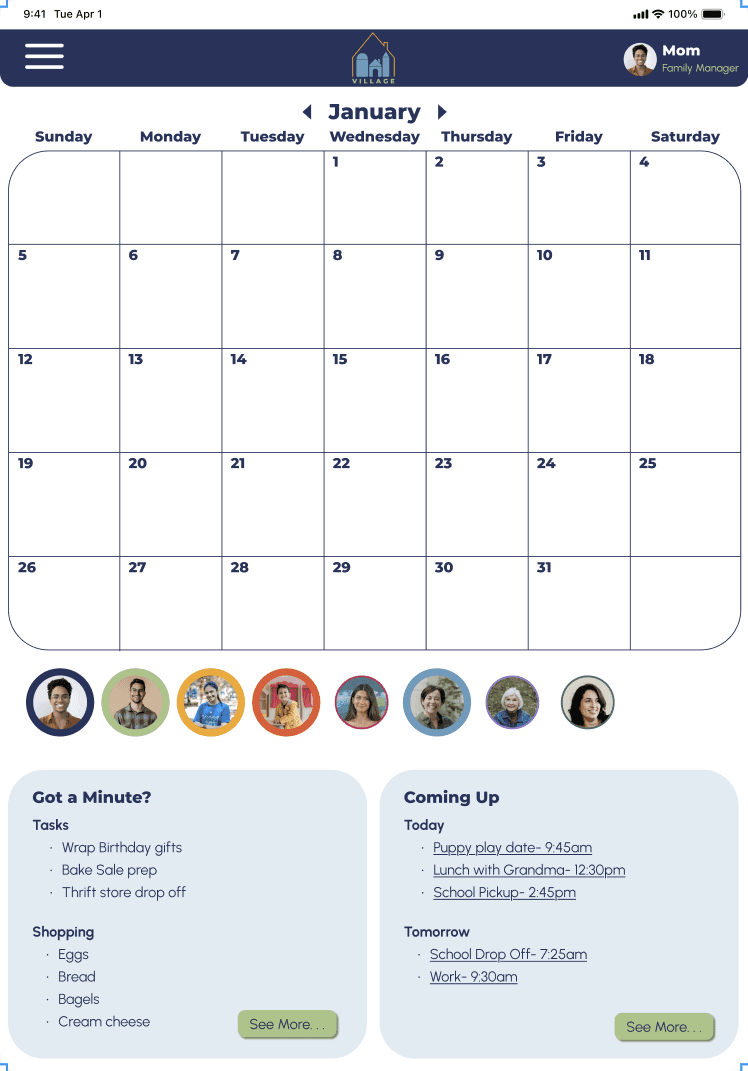
The Product
Village is a schedule management website designed for parents and families with lots of activities to coordinate and never enough time in the day.
The Problem
With the hustle and bustle of modern life, it is harder now than ever to manage the full schedules of our busy kids. Single and partnered parents alike need help keeping track of all the places they need to be and how they’re going to get there.
The Goal
Create a responsive website that allows for quick and easy management of family activities from any device so that nothing is forgotten, and everyone’s needs are met.
Duration
January 2025- February 2025
January 2025- February 2025
My Role
This is an individual project that allowed me to gain experience in each step of the design process as a UX design student.
Responsibilities
Conduct and analyze user research
Create user flows and storyboards
Wireframing
Create high and low-fidelity prototypes
Usability testing
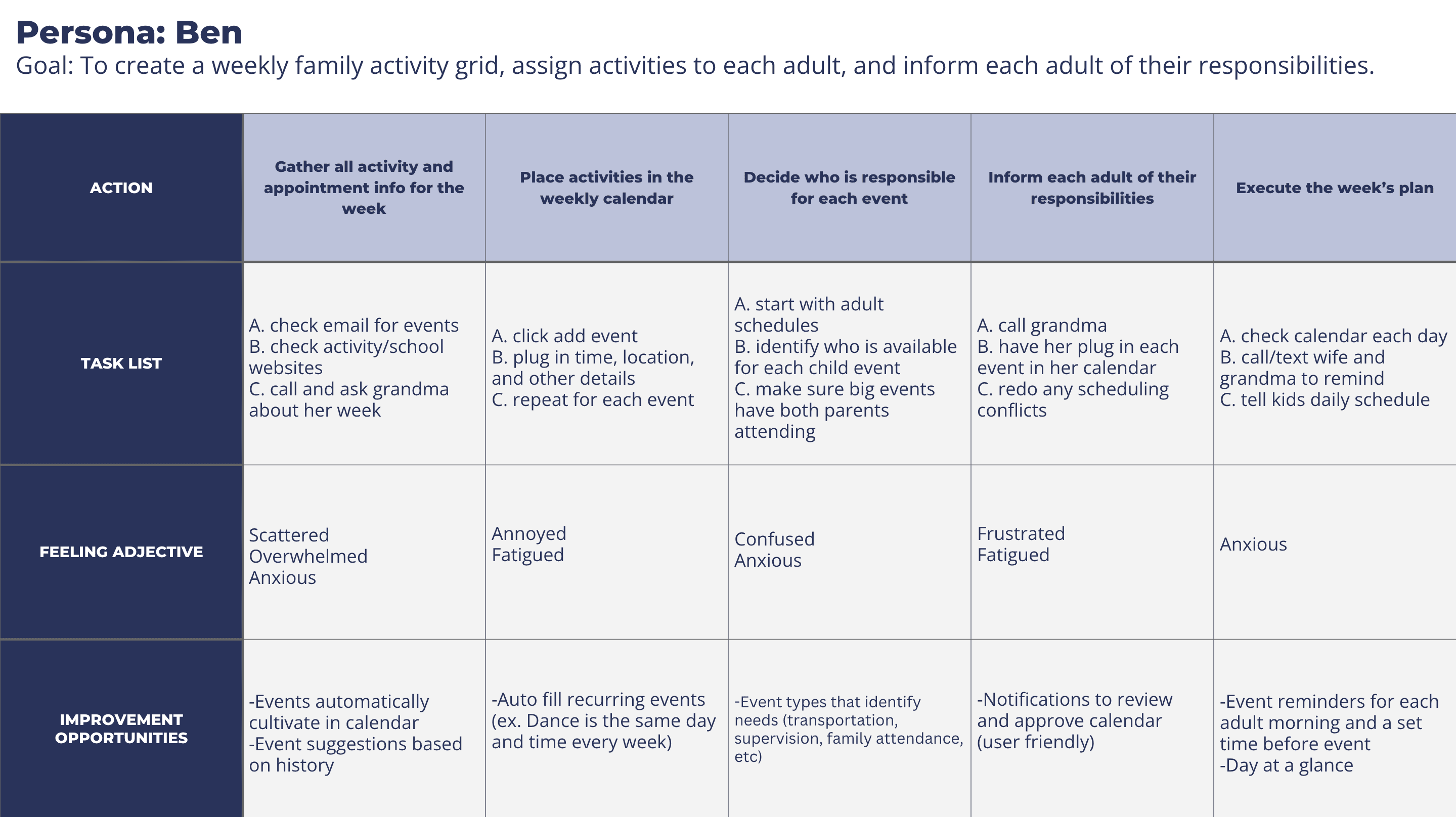
Personas:
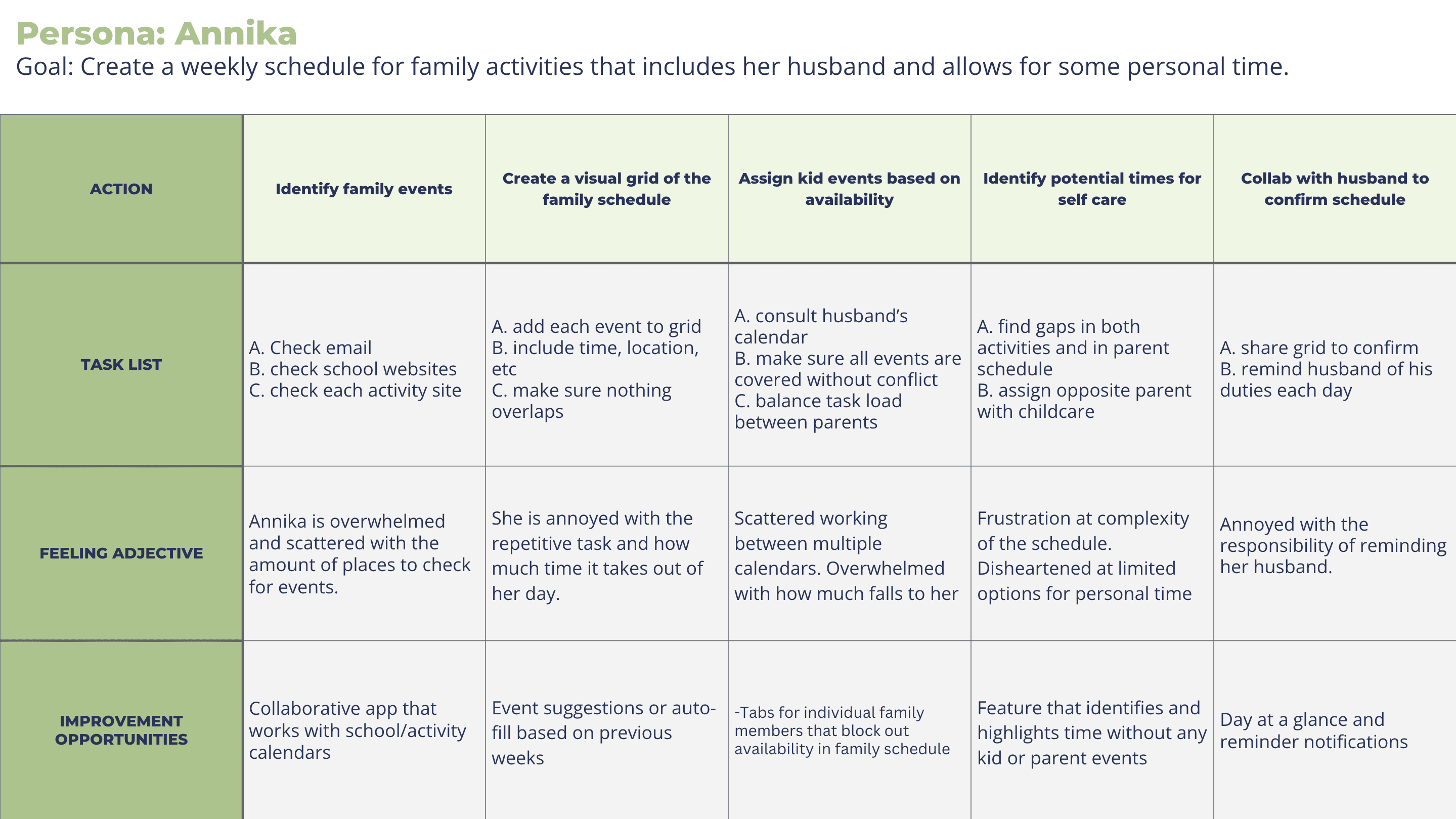
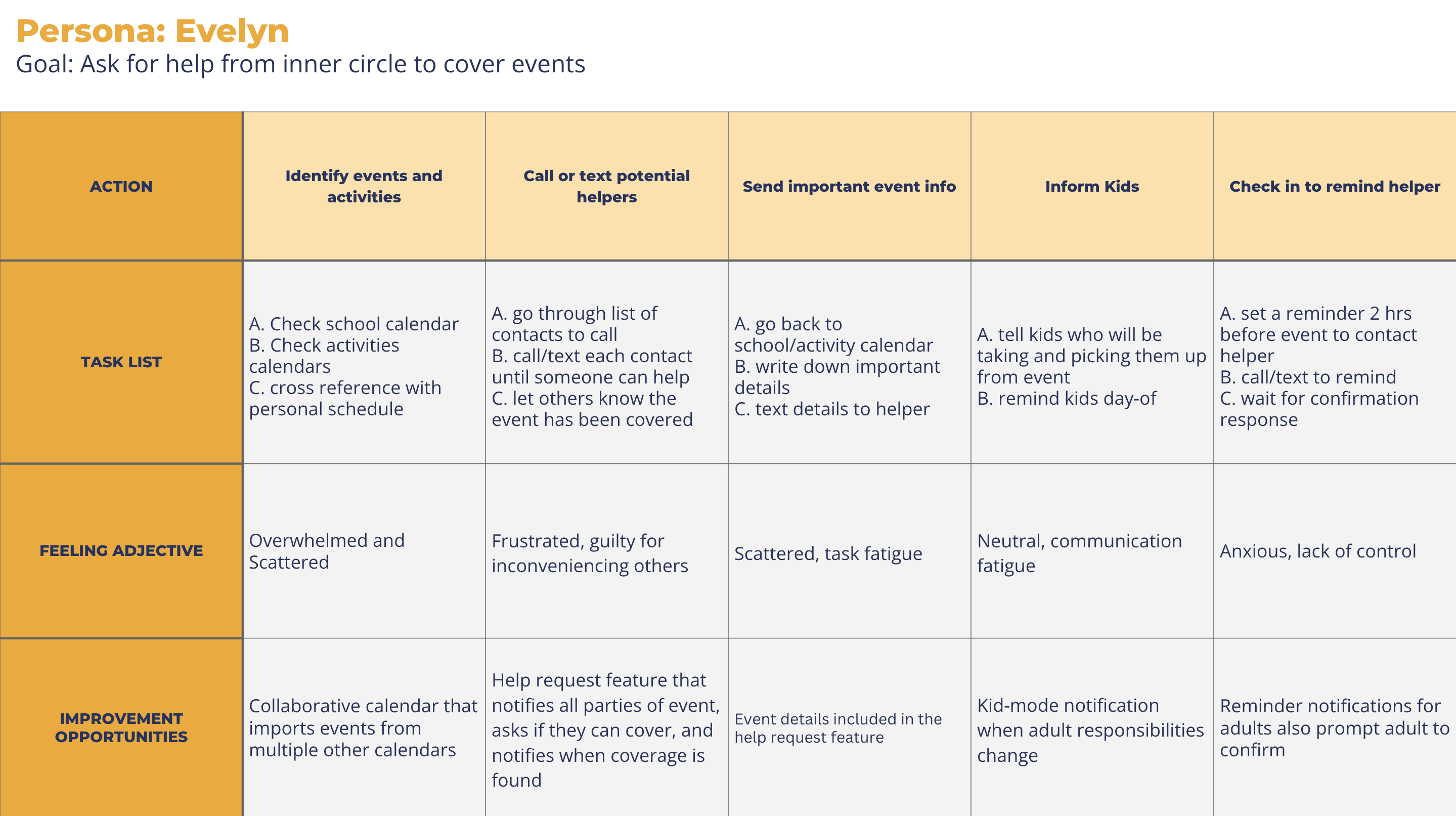
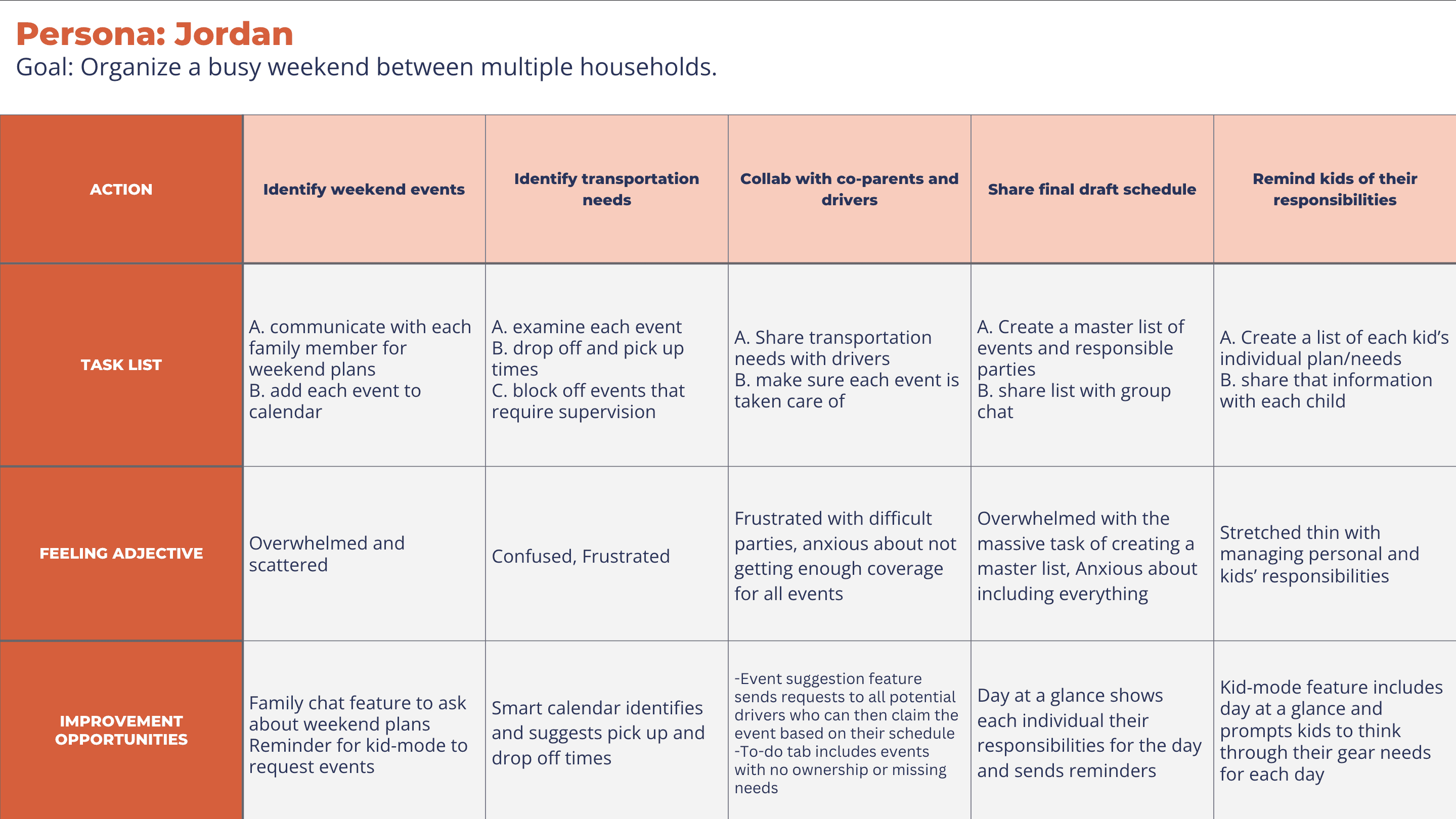
Understanding the User
User Research - Personas - Problem Statements - User Journey Maps - User Flows - Storyboards - User Research - Personas - Problem Statements - User Journey Maps - User Flows - Storyboards -
Research Summary:
To understand user needs and frustrations, I conducted foundational research through interviews. I wanted to gain insight into the challenges users face with managing their families schedules as well as any needs that aren’t being met with the tools they currently use.
The research, personas, and journey maps for this project were conducted and created previously for the app version of the product.
Pain Points:
1
Gathering info from
too many places
Every school, activity, and workplace has their own calendar system and it takes a lot of time and energy to keep track of each one and update the family calendar
2
Looping in the tech-averse
Users still learning to use technology can struggle with more complicated calendar apps, instead relying on family organizers to communicate directly
3
Difficulty sharing responsibility
Many systems end up with one person feeling solely responsible for managing the family and “owning” the shared calendar
4
Last minute
scrambling
With multiple parties involved in an event or activity, it can be difficult to communicate and coordinate effectively, sometimes leading to things falling through the cracks
Journey Maps
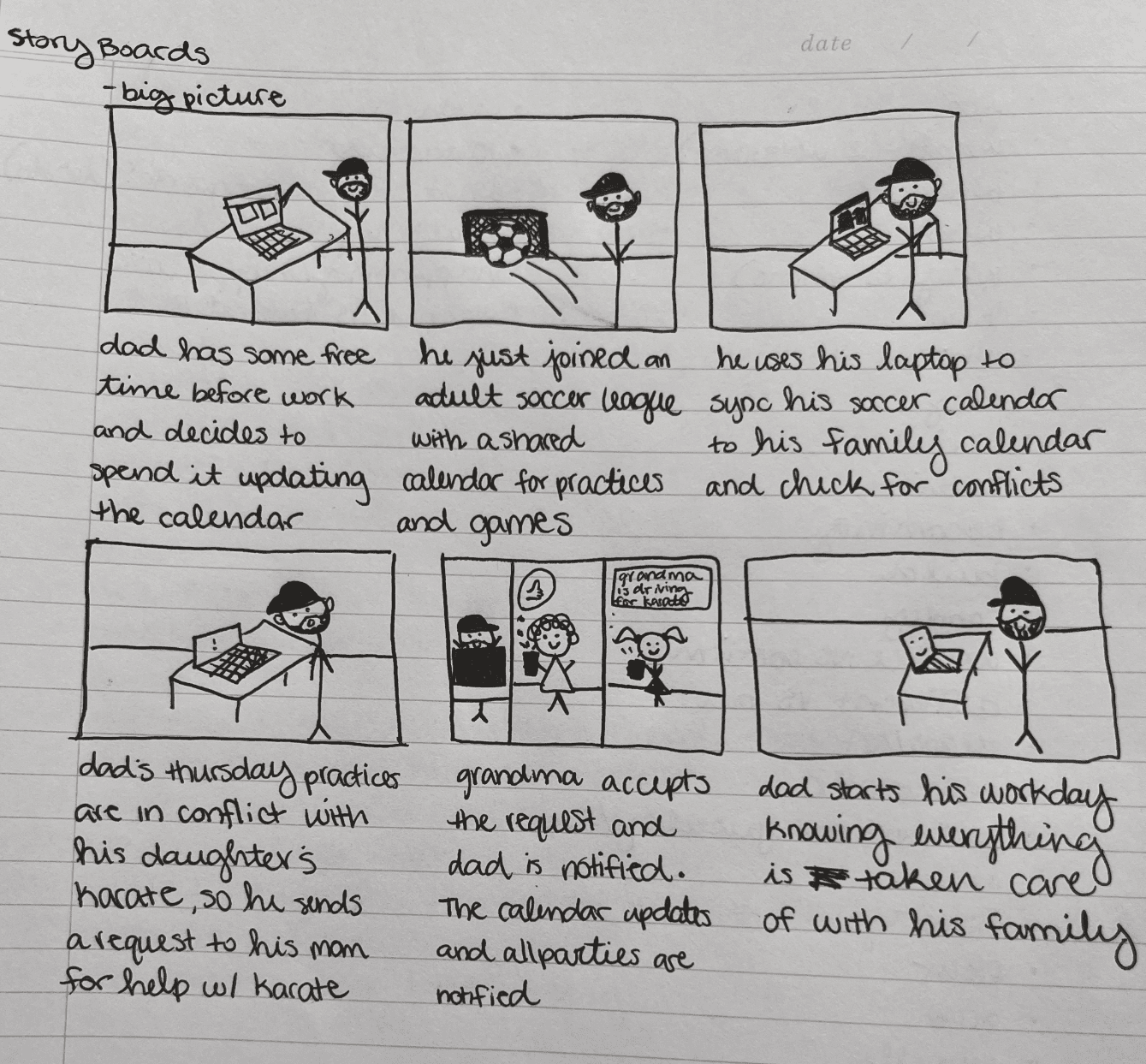
Storyboards
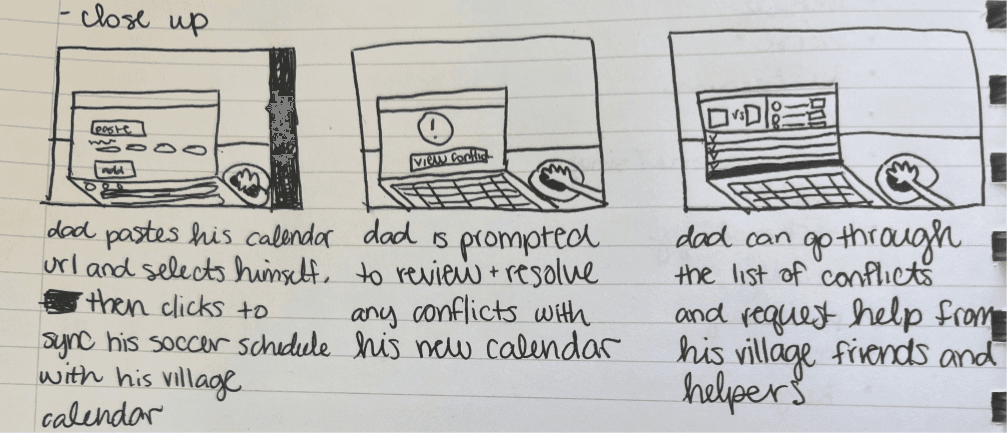
I also used storyboards to understand my users and the core tasks they’d be using my product to accomplish from various types of devices.
User Flows
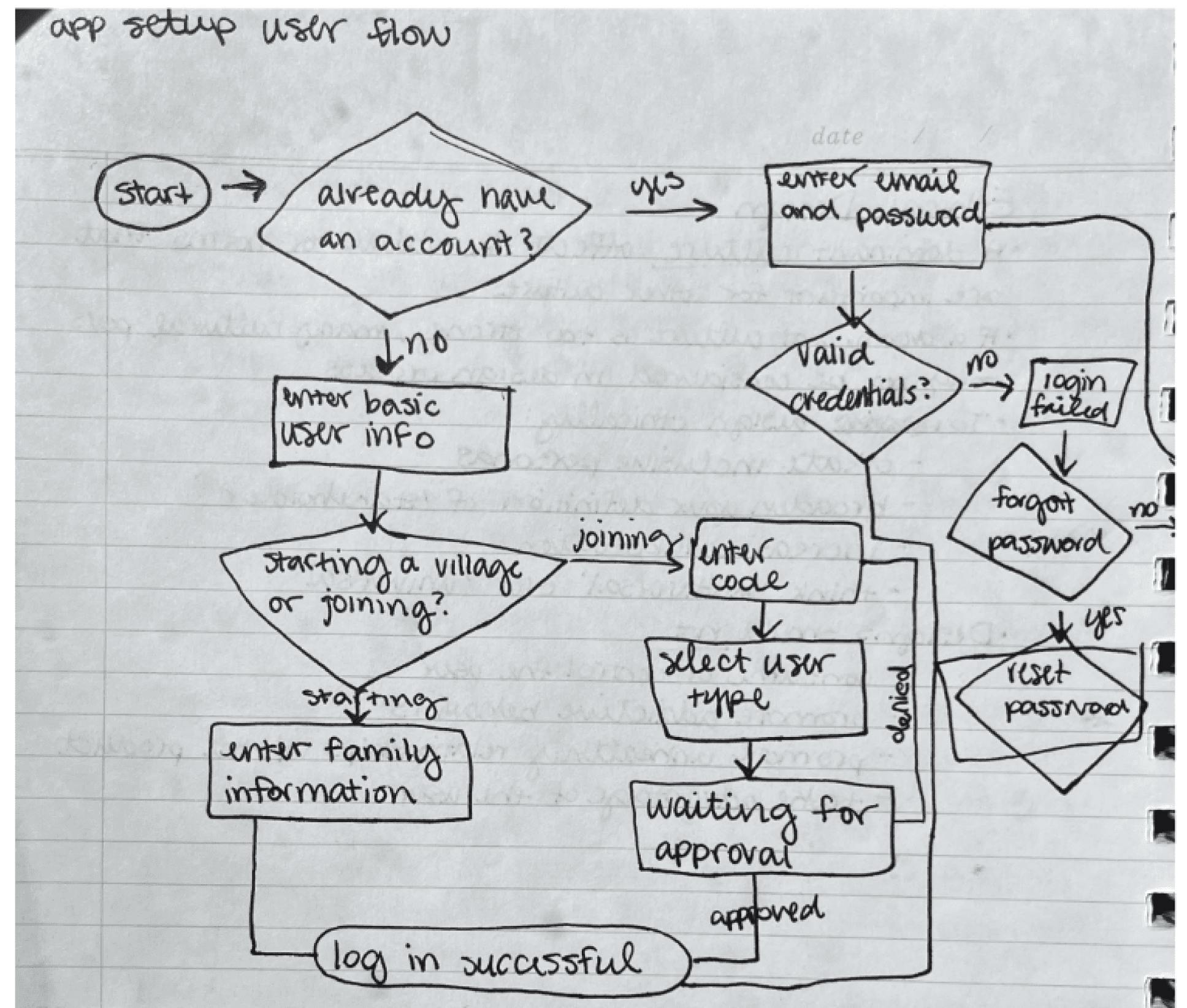
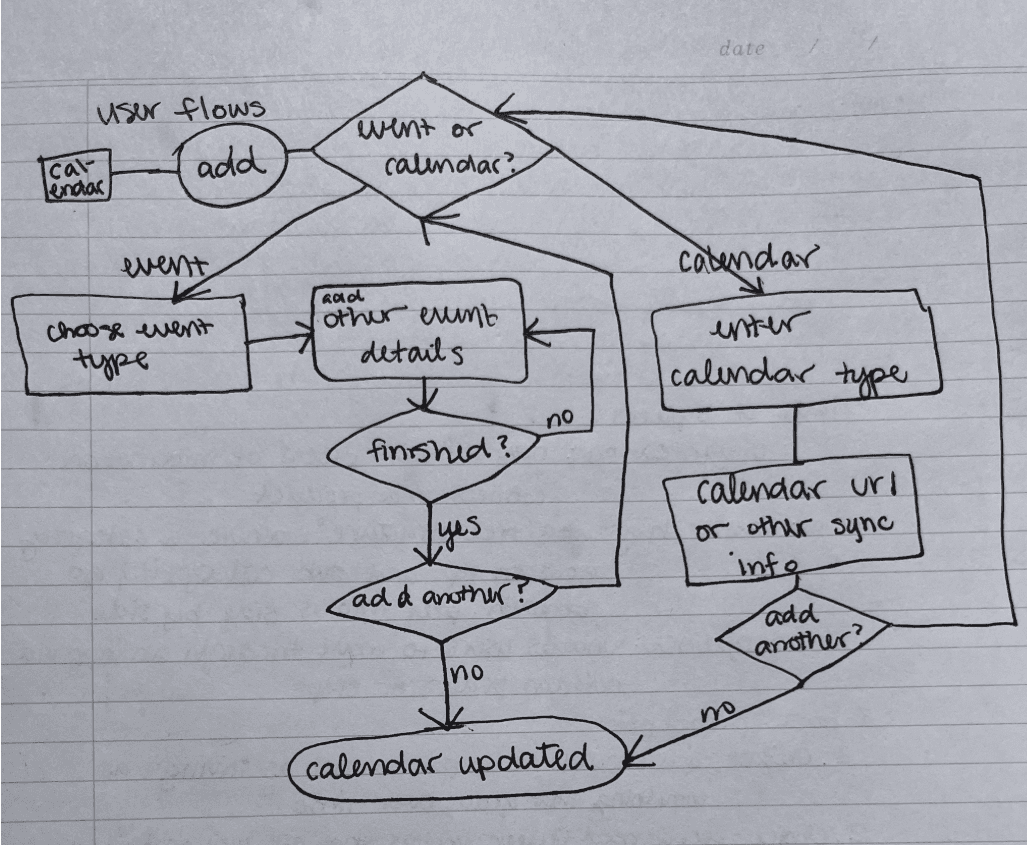
To help outline each step involved in a task, I created flows for my users main goals.
Starting the Design
Starting the Design
Paper Wireframes - Digital Wireframes - Low Fidelity Prototype - High Fidelity Prototype - Usability Studies - Paper Wireframes - Digital Wireframes - Low Fidelity Prototype - High Fidelity Prototype - Usability Studies
Paper Wireframes - Digital Wireframes - Low Fidelity Prototype - High Fidelity Prototype - Usability Studies - Paper Wireframes - Digital Wireframes - Low Fidelity Prototype - High Fidelity Prototype - Usability Studies
Sitemap
Sitemap
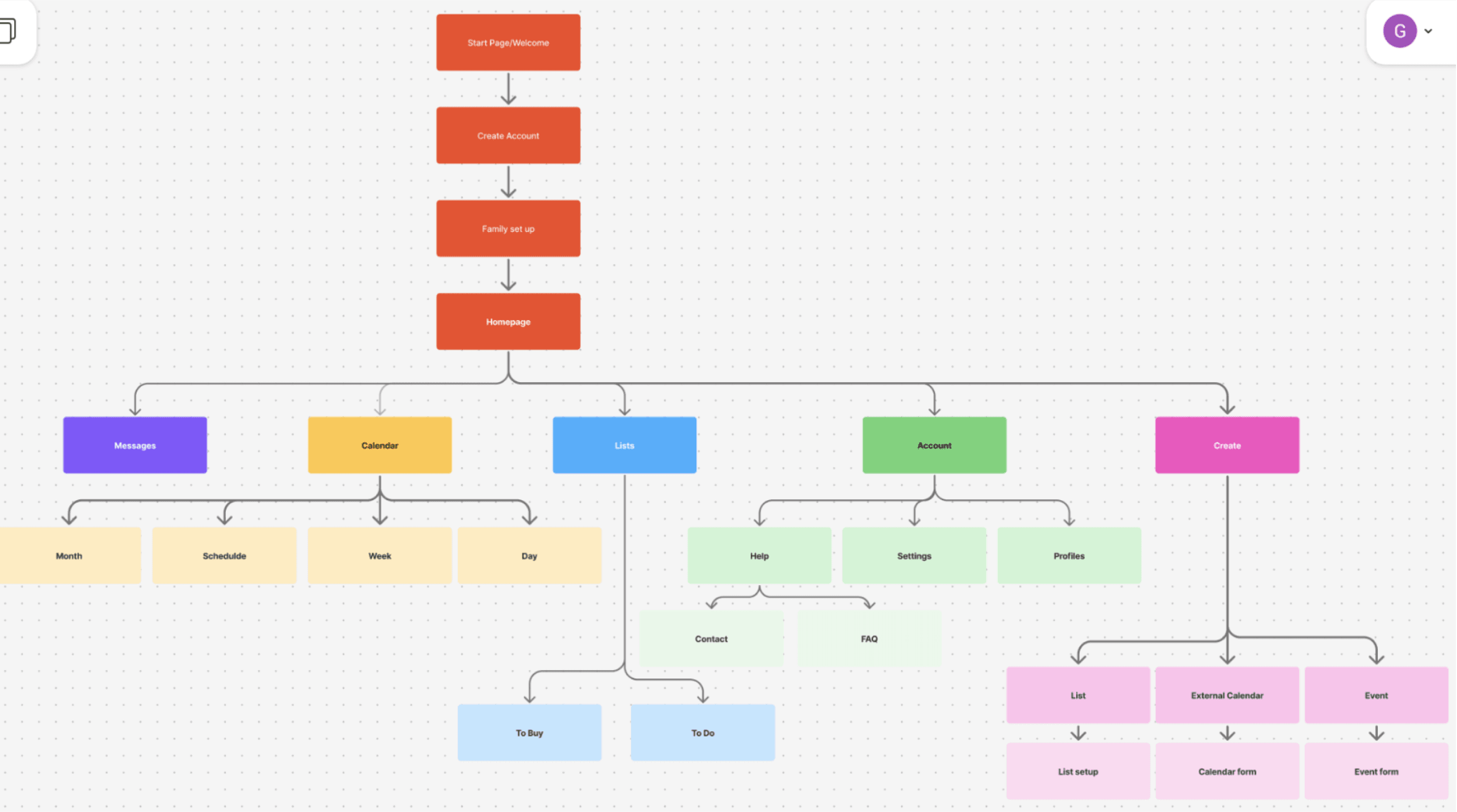
To prepare for wireframing, I created a sitemap to organize my pages and visualize the site structure.
To prepare for wireframing, I created a sitemap to organize my pages and visualize the site structure.
Paper Wireframes
Paper Wireframes
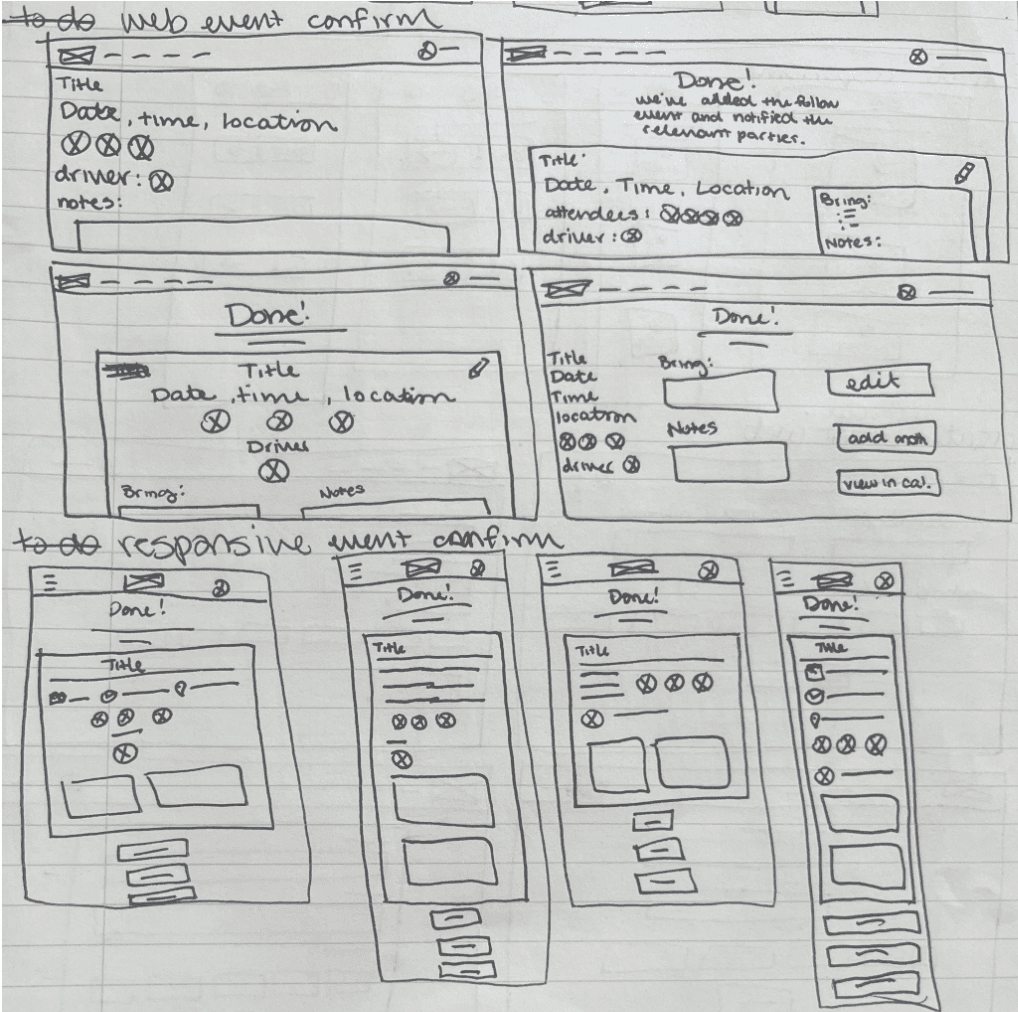
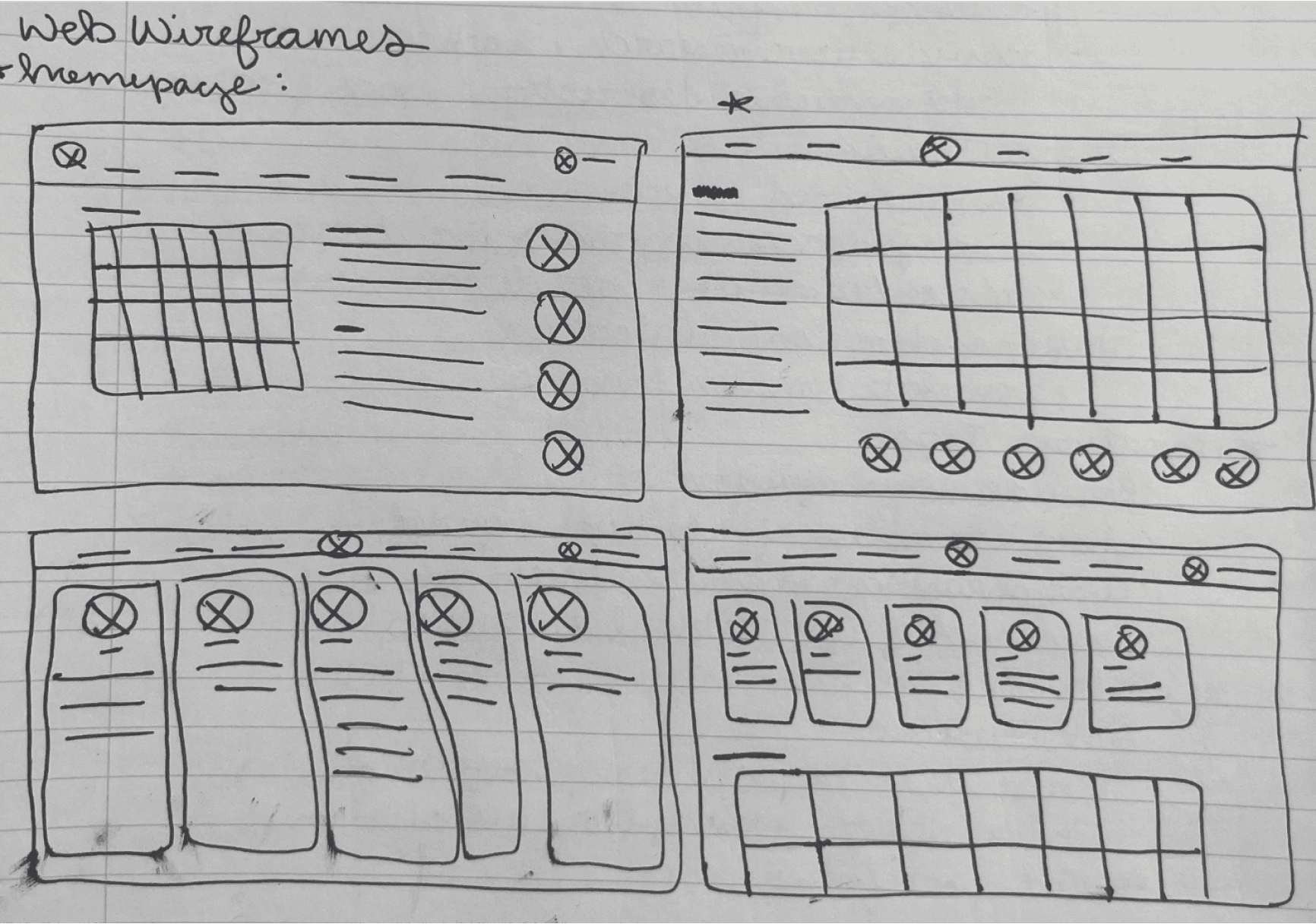
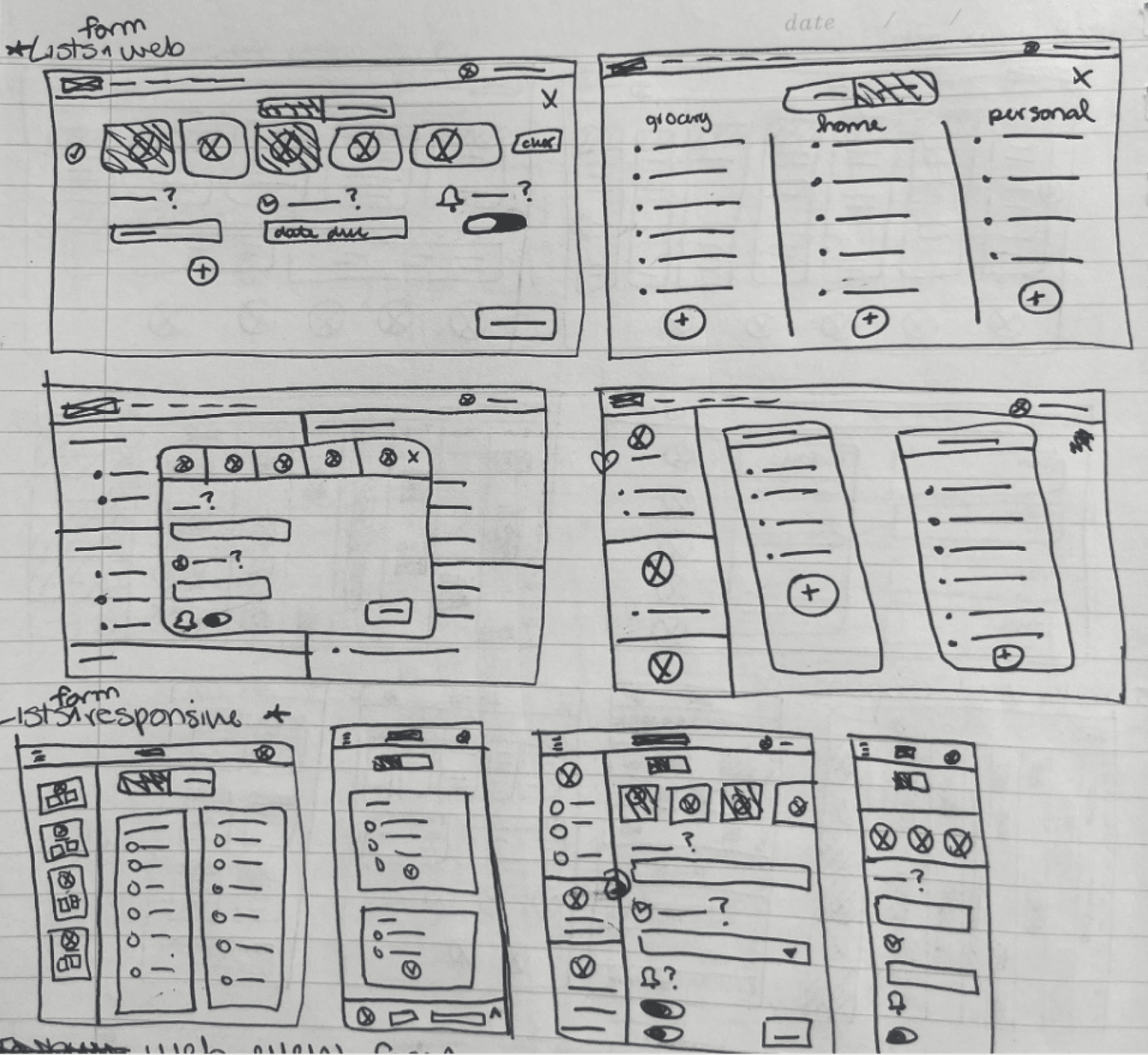
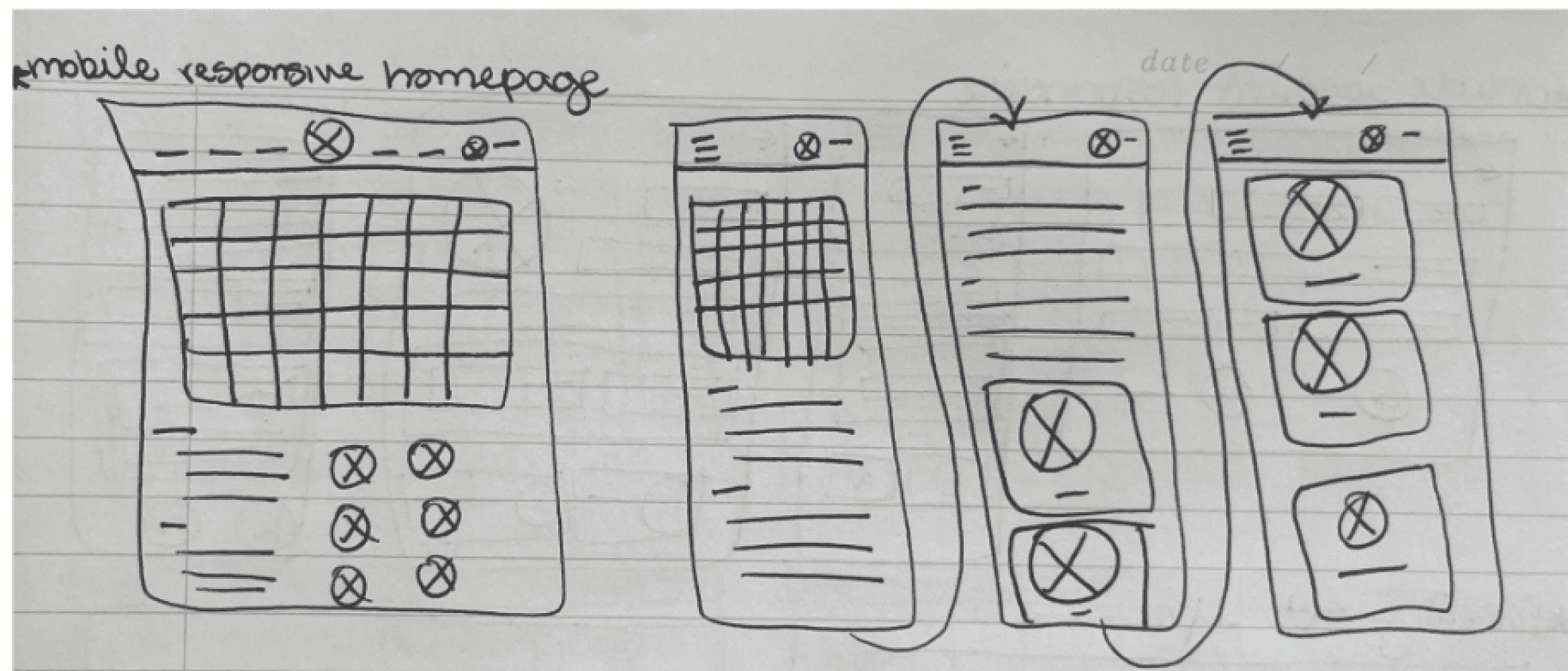
Using my personas, journey maps, storyboards, and IA to inform the core functions of the website, I began sketching wireframes with pen and paper, creating 2-3 ideas for each screen.
I also included sketches for mobile and tablet screens for each page in order to make sure each variation felt like it was designed specifically for its screen size.
Using my personas, journey maps, storyboards, and IA to inform the core functions of the website, I began sketching wireframes with pen and paper, creating 2-3 ideas for each screen.
I also included sketches for mobile and tablet screens for each page in order to make sure each variation felt like it was designed specifically for its screen size.
Digital Wireframes
I used Figma to create digital wireframes for each page and screen size. I wanted to keep as much content as possible above the fold to make the site feel like it was created specifically for the screen it is on and to make navigation easier.
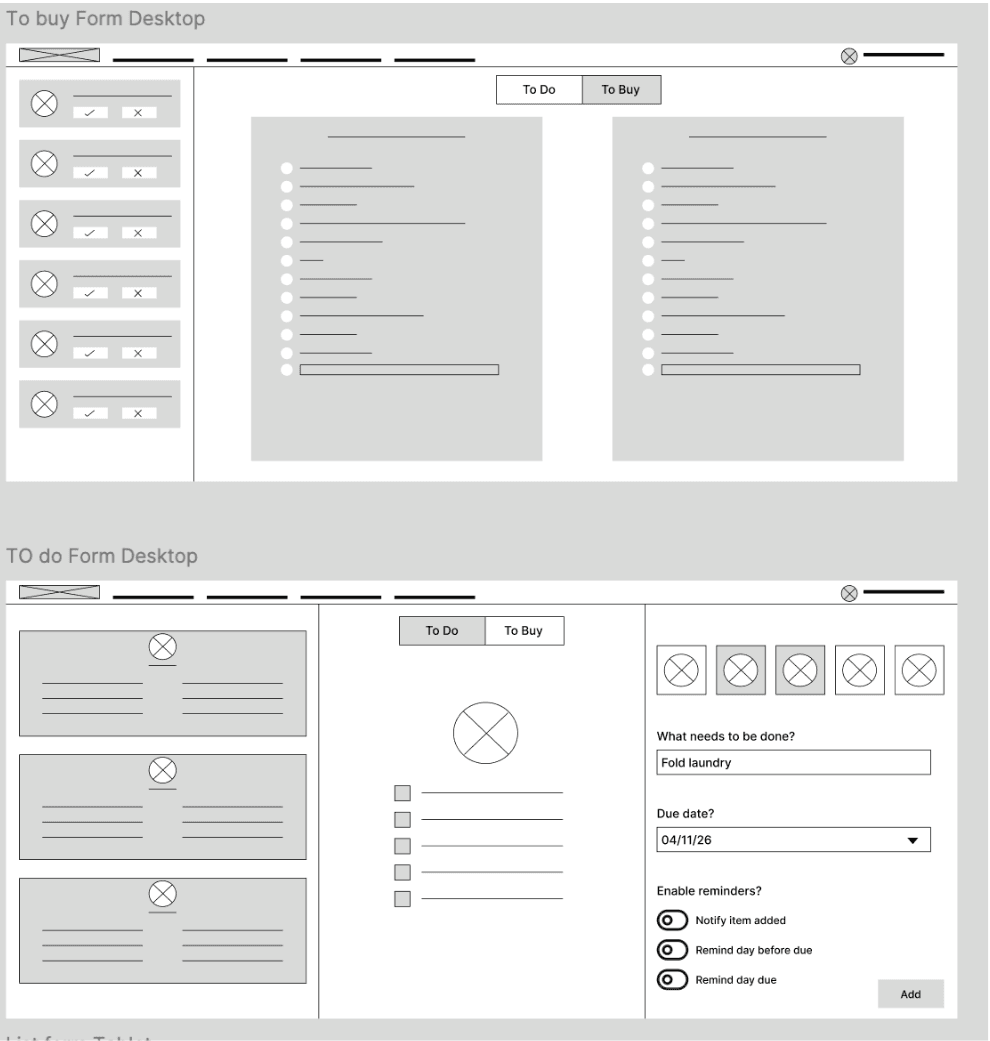
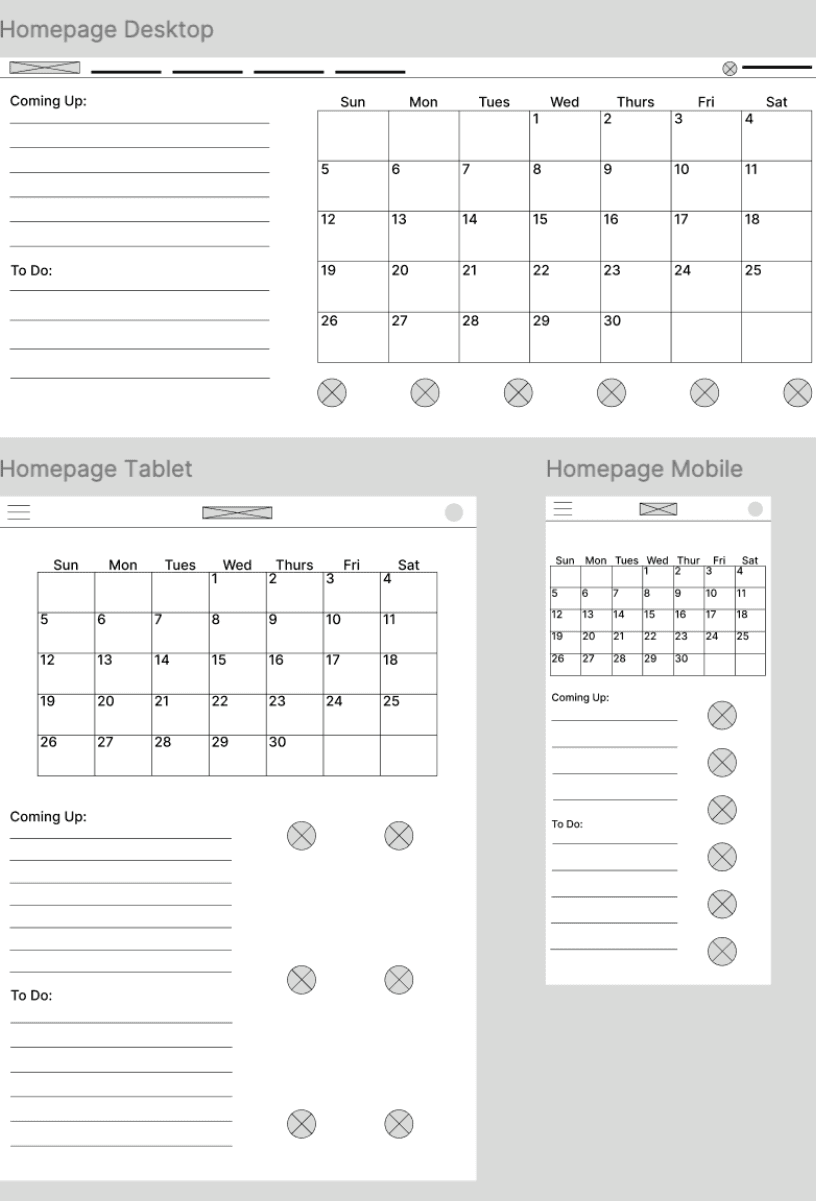
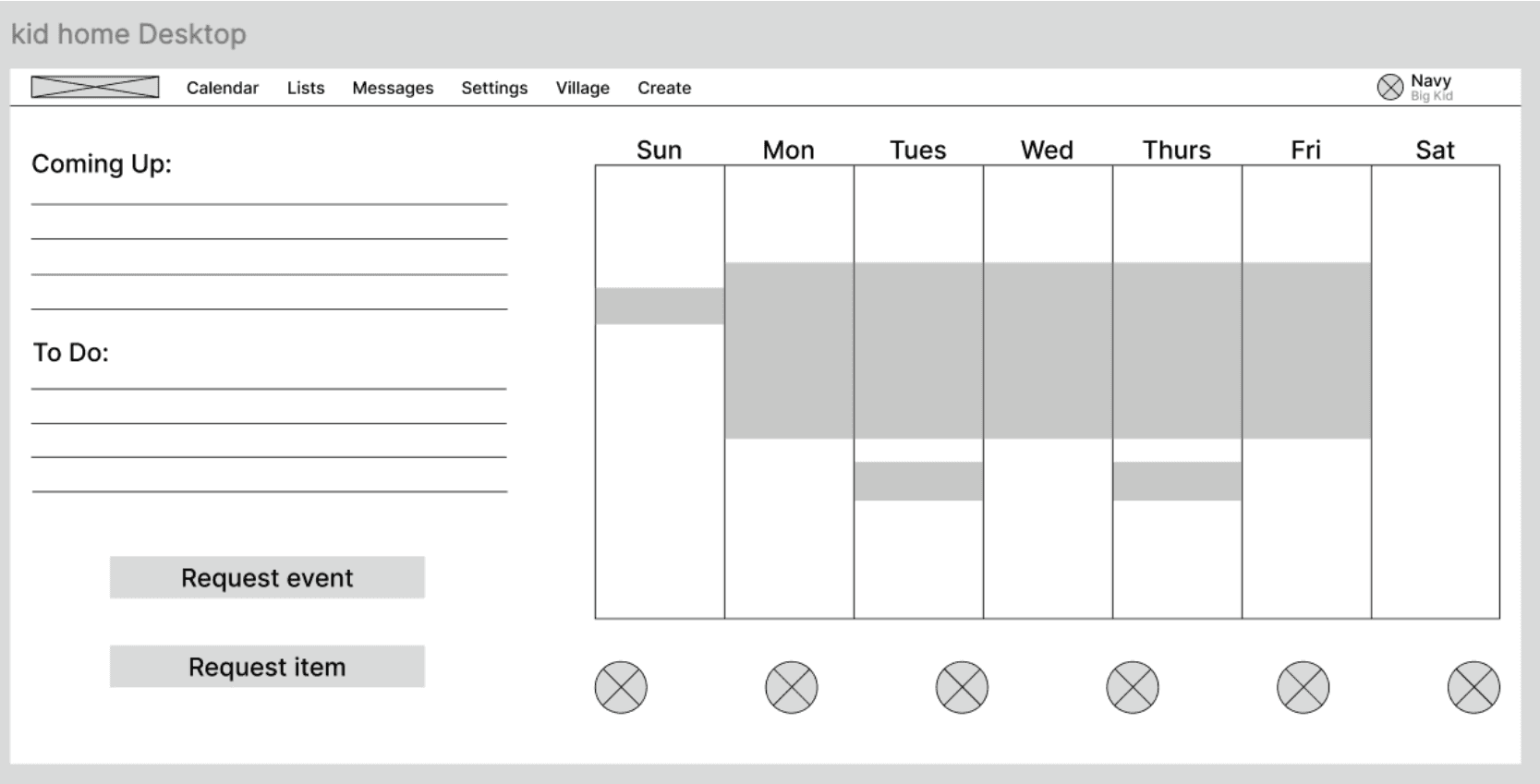
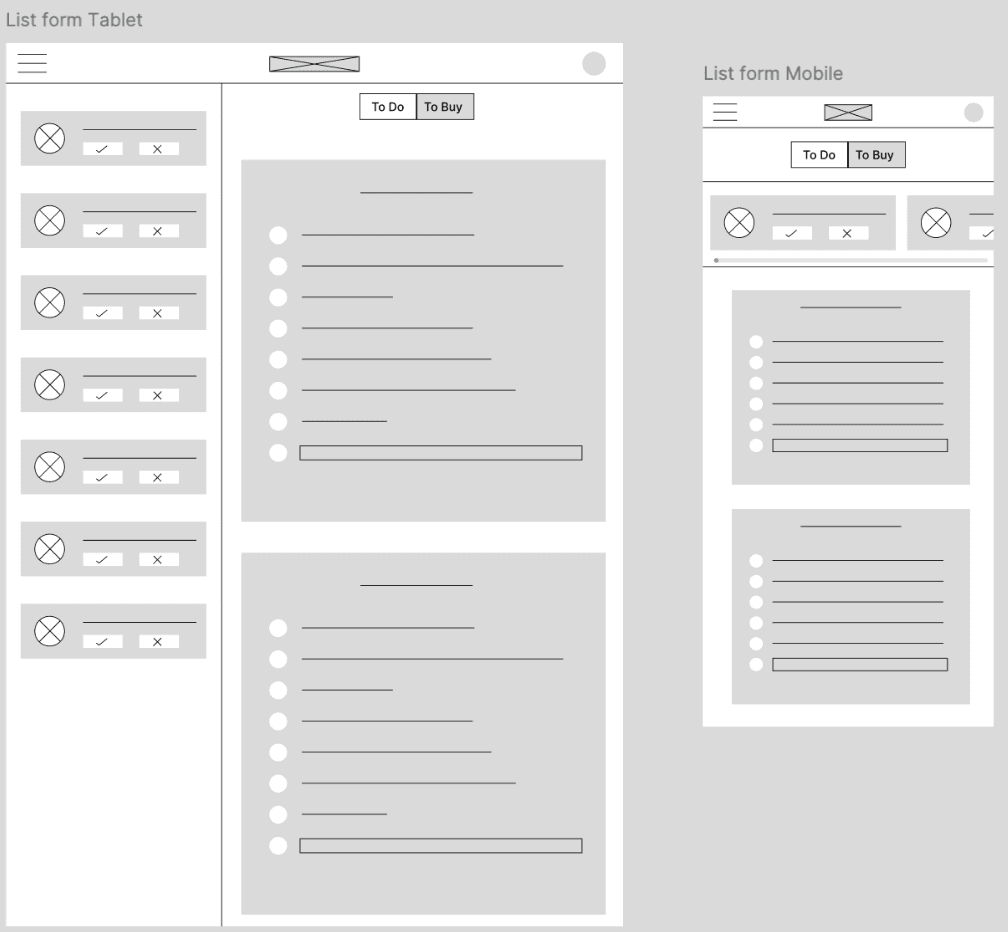
Most important information (personal to-do list) is centered and has more white space than the other sections in order to draw the users eye.
Grocery and item requests from kids
elements are rearranged as screen size decreases in order to keep all information visible above the fold.
Horizontal scrolling for mobile version allows the page to still feature requests without taking away from the space needed for lists
Kid mode homepage simplified to a week view
1
Family setup categories are confusing
Moving forward: Change the member category names to be more straightforward
2
Users unsure what to do on family setup page
Moving forward: Add a little blurb telling users what they can do on the page
3
Missing confirmation on to-do list items
Moving forward: Add a confirmation page after an item is added to anyone’s to-do list
4
Icons were unclear for some users
Moving forward: any non-standard icons should have a label telling users what its for
Usability Study
I conducted a remote moderated usability study with 5 participants. Each session lasted 20 minutes as participants were prompted to complete core tasks within the prototype and give feedback after each one. At the end of the interview, participants also completed a system usability scale survey. The following patterns were used to form insights that could be factored into the next iteration of the product.
Low- Fidelity Prototype
View Prototypes
View Prototypes
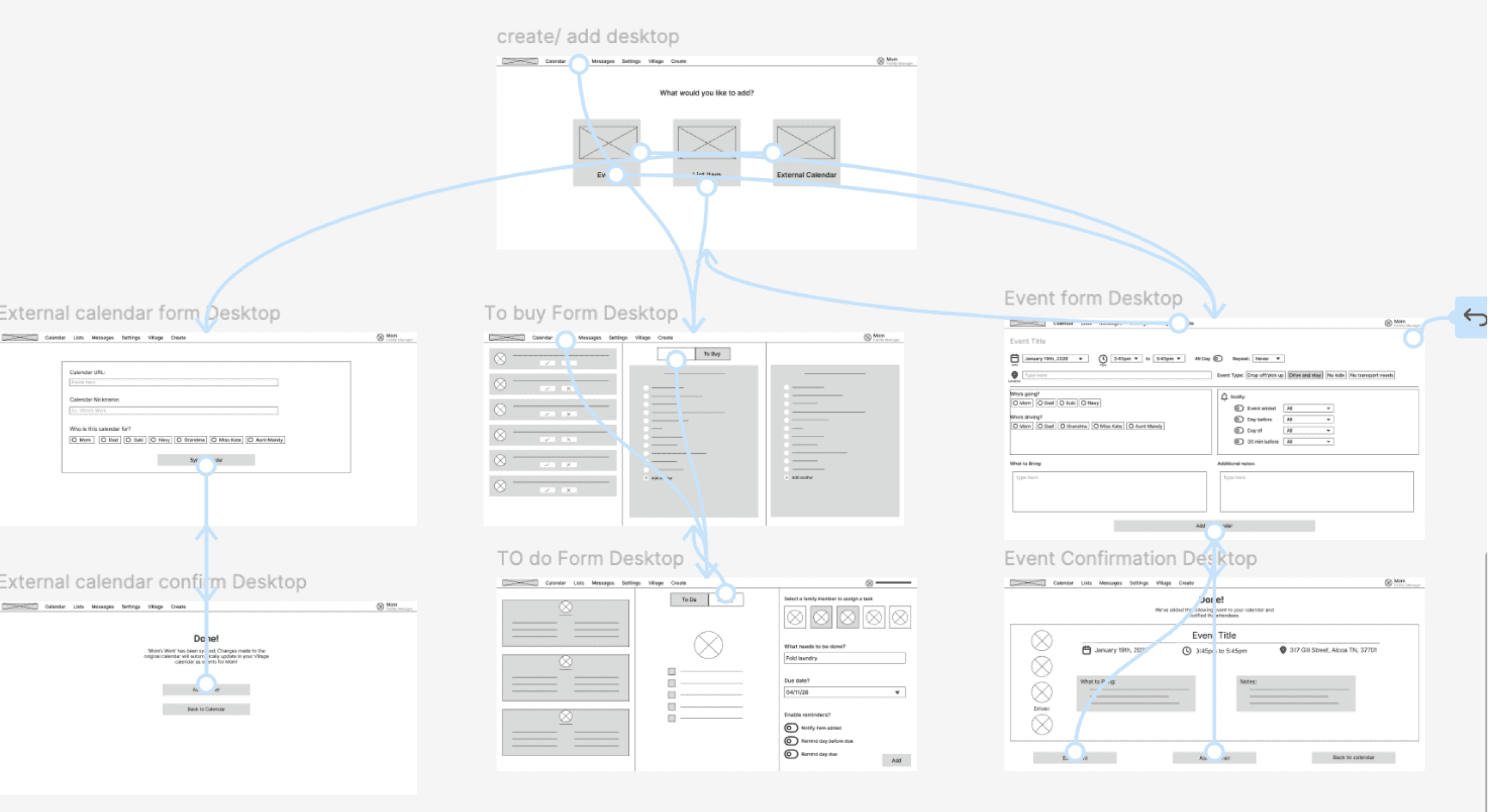
I created a low-fi prototype out of my initial wireframes to test functionality and get user feedback before finalizing the design and features.
I created a low-fi prototype out of my initial wireframes to test functionality and get user feedback before finalizing the design and features.
Usability Study
I conducted a remote moderated usability study with 5 participants. Each session lasted 20 minutes as participants were prompted to complete core tasks within the prototype and give feedback after each one. At the end of the interview, participants also completed a system usability scale survey. The following patterns were used to form insights that could be factored into the next iteration of the product.
1
Family setup categories are confusing
Moving forward: Change the member category names to be more straightforward
2
Users unsure what to do on family setup page
Moving forward: Add a little blurb telling users what they can do on the page
3
Missing confirmation on to-do list items
Moving forward: Add a confirmation page after an item is added to anyone’s to-do list
4
Icons were unclear for some users
Moving forward: any non-standard icons should have a label telling users what its for
Refining the Design
Mockups
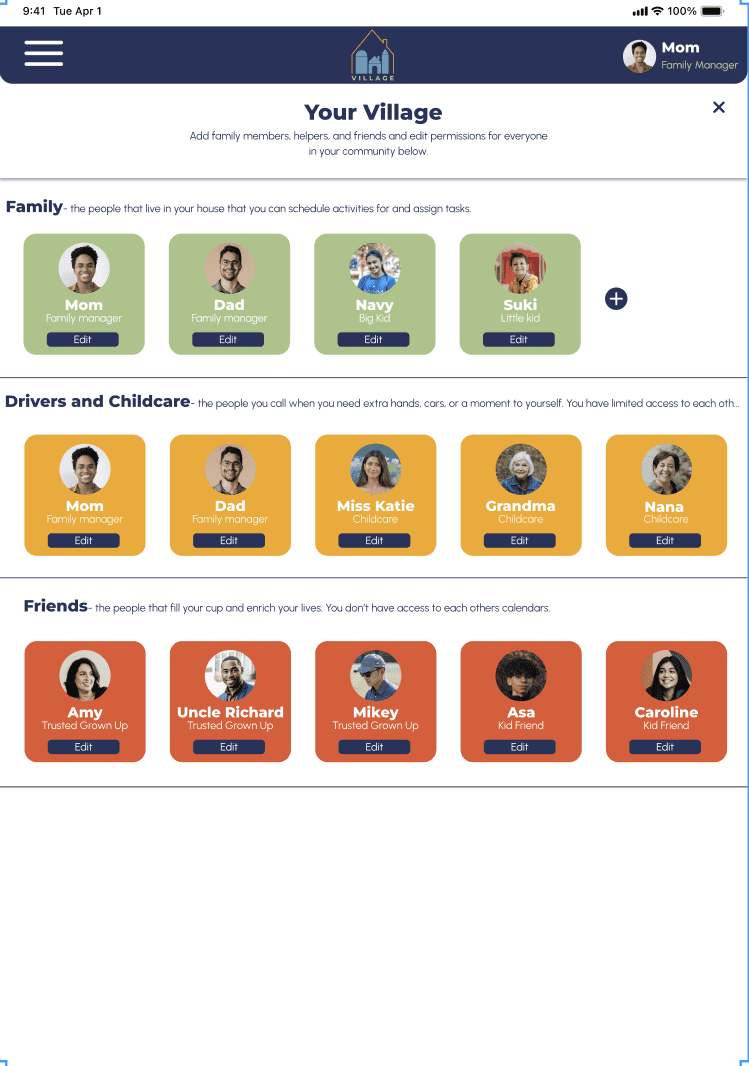
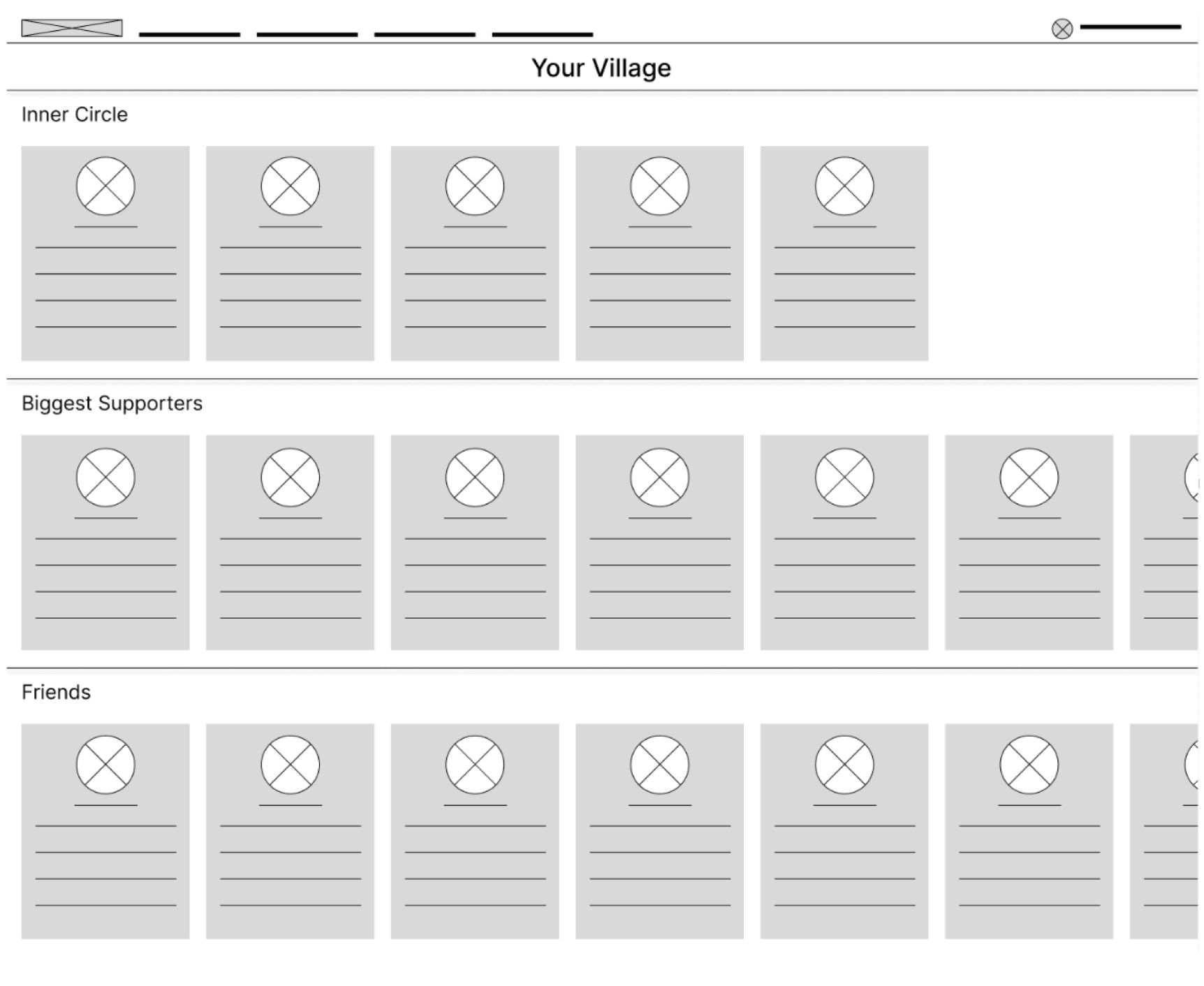
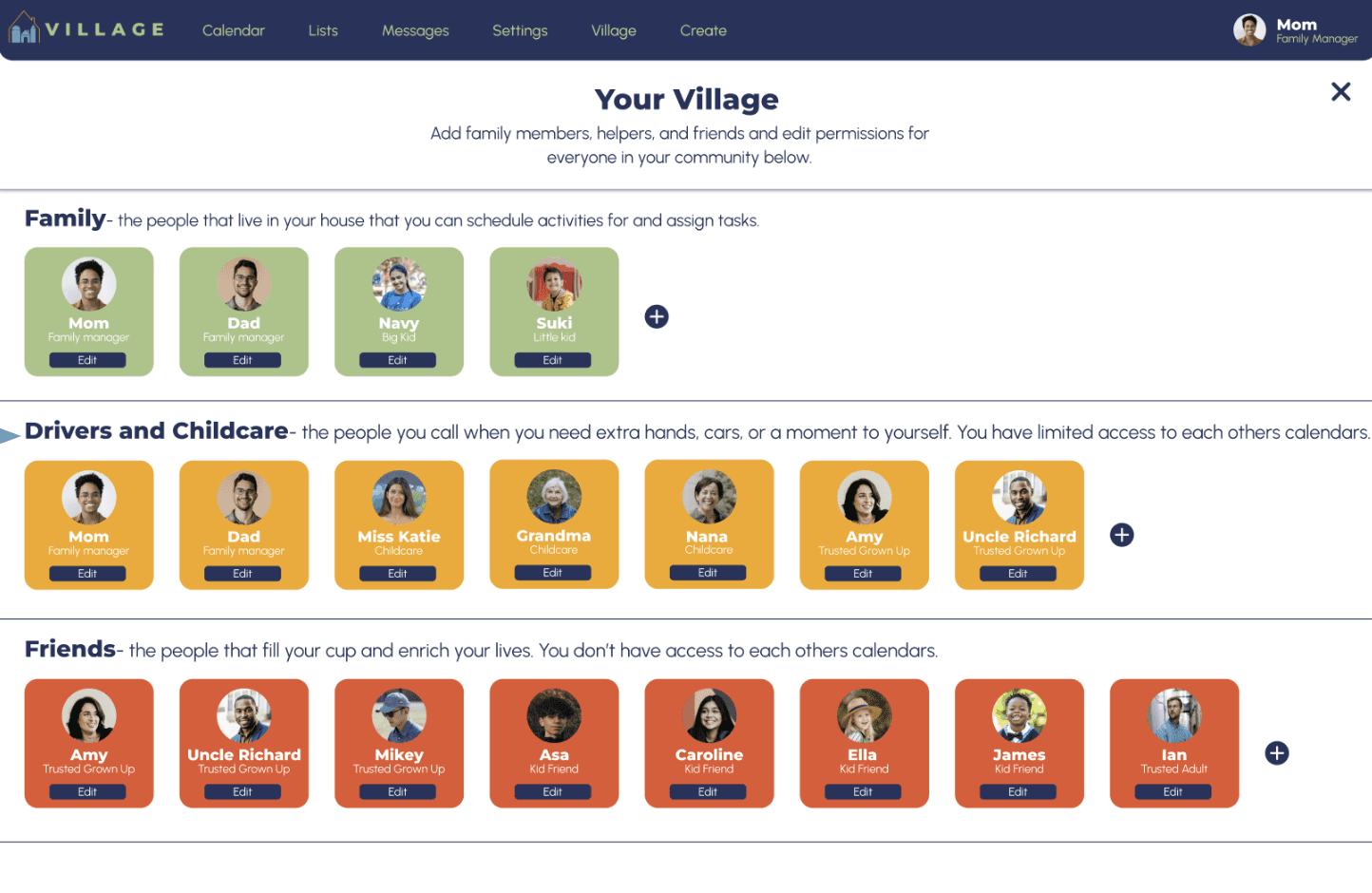
Based on insights 1 and 2, I created a mockup for the family setup page that uses clearer category names as well as short descriptions to help users understand each section.
I also used color to create a visual difference between village member types and added language to help inform users what to do on this page.
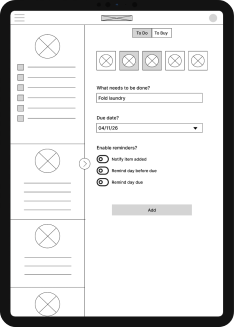
I added an overlay screen to the to do list page so that users get confirmation that their form is submitted, as well as a chance to review and edit the item they just added. The confirmation page also informs uses that the person they assigned a task to has been notified so they know that no further communication is needed.
Before Usability Study:
After Usability Study:
Before Usability Study:
After Usability Study:
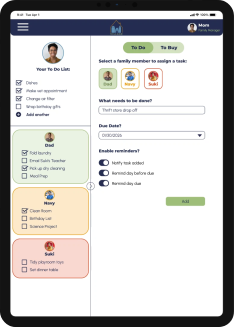
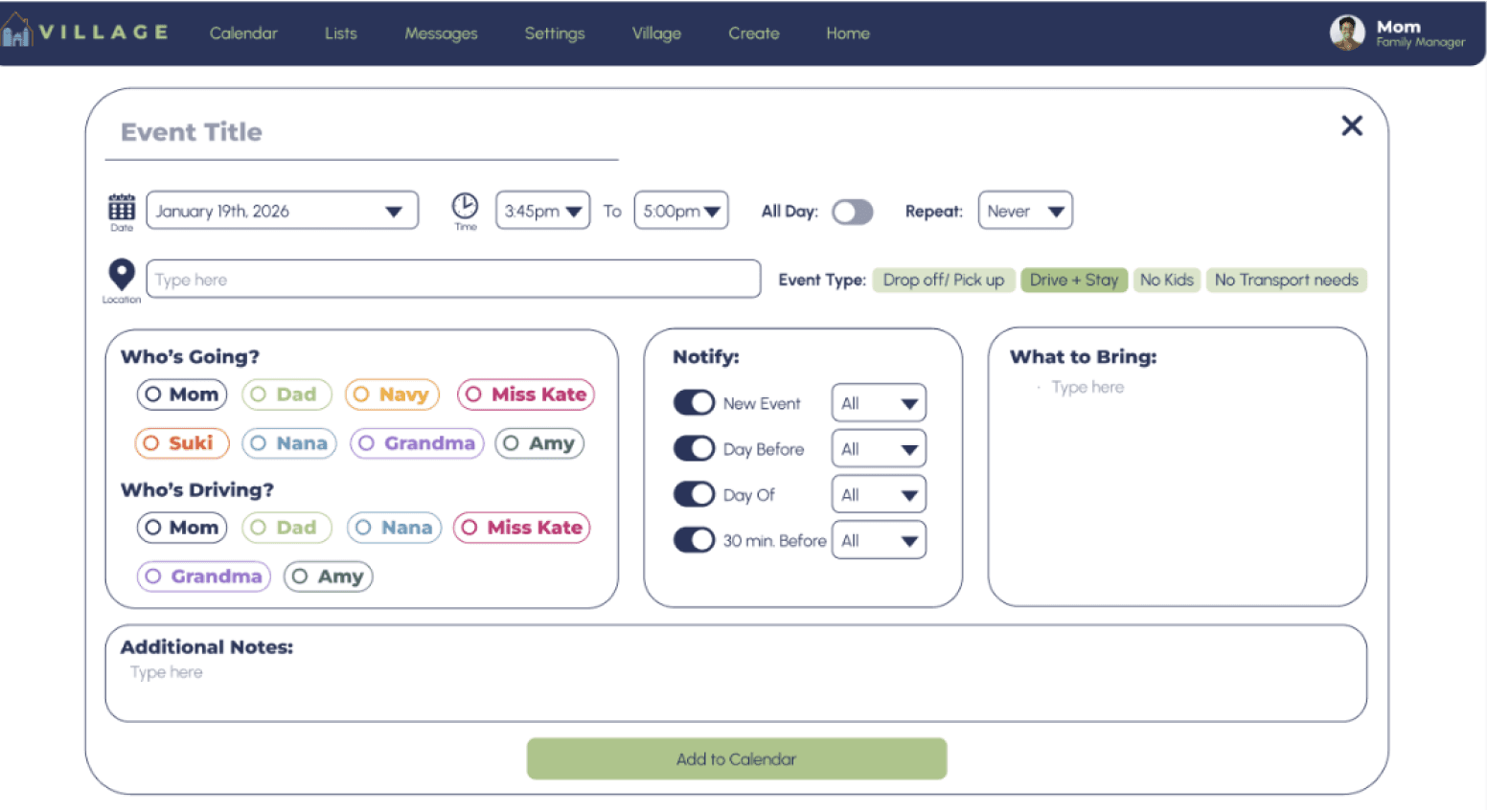
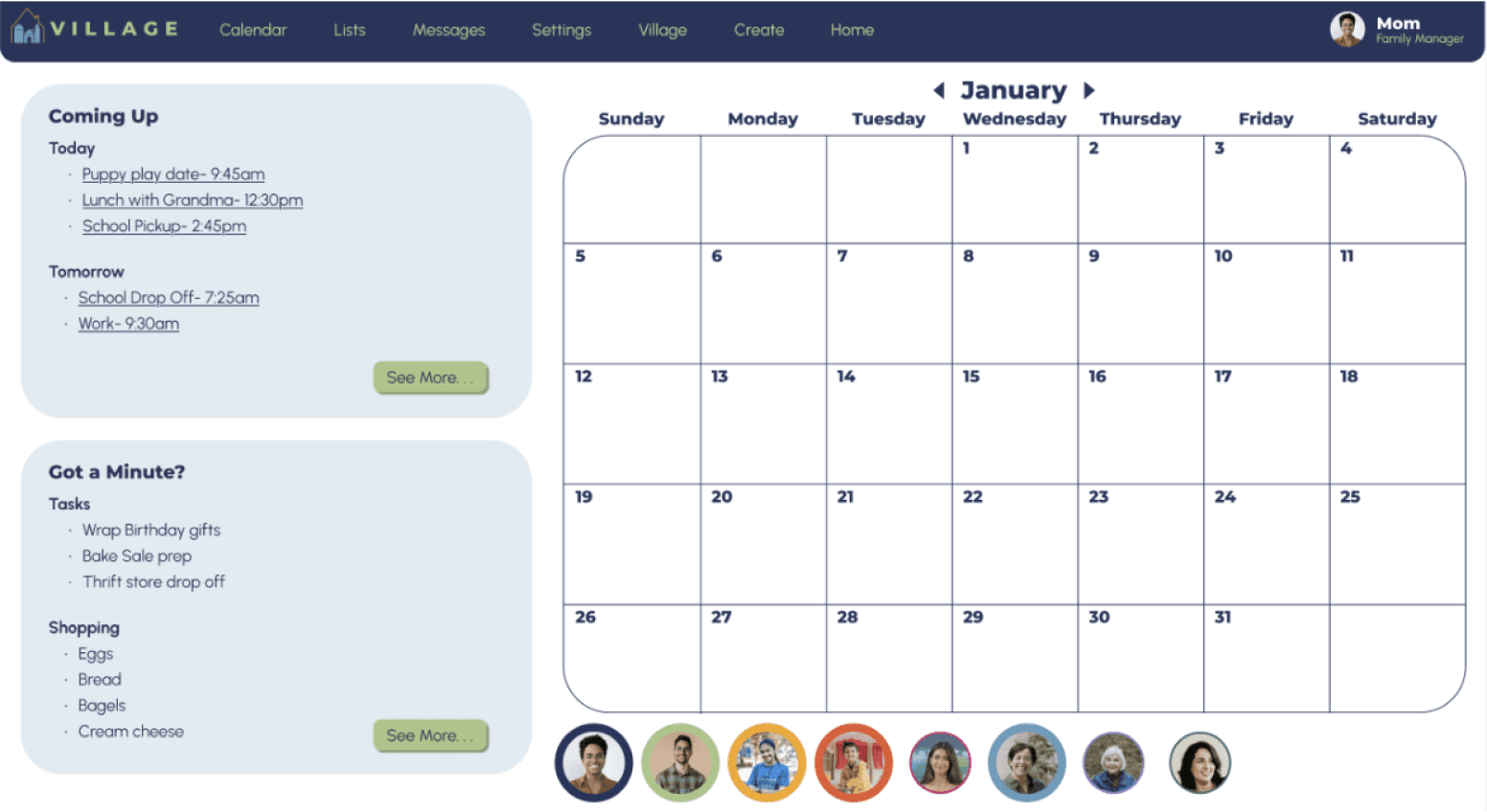
After finalizing the mockups, I linked the screens (and added a few) to create a hi-fi prototype that looks and feels like a final product. I used a color palette with bright primary colors for a simple, but playful visual experience.
View Prototype:
High Fidelity Prototype
Mockups - High Fidelity Prototypes - Accessibility - Mockups - High Fidelity Prototypes - Accessibility - Mockups - High Fidelity Prototypes - Accessibility
1
When choosing my color palette, I made sure my primary colors met WCAG AA guidelines, and that my text colors met AAA guidelines before building out my UI.
2
I used annotations to provide focus order, reading order, and alt text. I also included button, link, and heading labels in order to improve accessibility and prepare my design for developers.
3
All buttons and icons are clearly labeled both for users unfamiliar with technology and for users with assistive technologies like screen readers.
Accessibility Considerations
Accessibility
Considerations
Going Forward
1
Share my designs with other UX/UI designers with more experience for feedback on how I can improve my design.
2
Update my designs based on that feedback to improve functionality
3
Execute another round of user testing to keep user preferences centered
Next Steps
Takeaways
Impact
Parents and caregivers are stretched thin. Between work, personal and kid activities, keeping the household running smoothly, communicating with outside help, and keeping track of every email, invite, and shared calendar, families need a simplified single location to manage their very full schedules. To address this need, I created a collaborative, multi-modal website that can consolidate complex schedules and allows for age-appropriate ownership from every family member.
What I Learned
As a beginning UX designer, this project gave me valuable knowledge and experience in each step of the design process, including but not limited to:
Responsive design
Annotating for accessibility and for developers
Conducting and implementing user research
Design thinking and problem solving
Next Steps - Takeaways - Next Steps - Takeaways -Next Steps - Takeaways -Next Steps - Takeaways -Next Steps - Takeaways -Next Steps - Takeaways -Next Steps - Takeaways -
Let’s Connect!
Let’s Connect!
I am always looking for feedback to improve my designs and process. Please reach out to share your thoughts!
After finalizing the mockups, I linked the screens (and added a few) to create a hi-fi prototype that looks and feels like a final product. I used a color palette with bright primary colors for a simple, but playful visual experience.
View Prototype:
High Fidelity Prototype
View Prototype:
Mockups
Based on insights 1 and 2, I created a mockup for the family setup page that uses clearer category names as well as short descriptions to help users understand each section.
I also used color to create a visual difference between village member types and added language to help inform users what to do on this page.
Based on insights 1 and 2, I created a mockup for the family setup page that uses clearer category names as well as short descriptions to help users understand each section.
I also used color to create a visual difference between village member types and added language to help inform users what to do on this page.
I added an overlay screen to the to do list page so that users get confirmation that their form is submitted, as well as a chance to review and edit the item they just added. The confirmation page also informs uses that the person they assigned a task to has been notified so they know that no further communication is needed.
Before Usability Study:
Before Usability Study:
After Usability Study:
After Usability Study:
Before Usability Study:
Before Usability Study:
After Usability Study:
After Usability Study:
I added an overlay screen to the to do list page so that users get confirmation that their form is submitted, as well as a chance to review and edit the item they just added. The confirmation page also informs uses that the person they assigned a task to has been notified so they know that no further communication is needed.
Mockups - High Fidelity Prototypes - Accessibility - Mockups - High Fidelity Prototypes - Accessibility - Mockups - High Fidelity Prototypes - Accessibility
Mockups - High Fidelity Prototypes - Accessibility - Mockups - High Fidelity Prototypes - Accessibility - Mockups - High Fidelity Prototypes - Accessibility
Refining the Design
Refining the Design
Takeaways
Impact
Parents and caregivers are stretched thin. Between work, personal and kid activities, keeping the household running smoothly, communicating with outside help, and keeping track of every email, invite, and shared calendar, families need a simplified single location to manage their very full schedules. To address this need, I created a collaborative, multi-modal website that can consolidate complex schedules and allows for age-appropriate ownership from every family member.
What I Learned
As a beginning UX designer, this project gave me valuable knowledge and experience in each step of the design process, including but not limited to:
Responsive design
Annotating for accessibility and for developers
Conducting and implementing user research
Design thinking and problem solving
Going Forward
1
Share my designs with other UX/UI designers with more experience for feedback on how I can improve my design.
2
Update my designs based on that feedback to improve functionality
3
Execute another round of user testing to keep user preferences centered
Next Steps
Next Steps - Takeaways - Next Steps - Takeaways -Next Steps - Takeaways -Next Steps - Takeaways -Next Steps - Takeaways -Next Steps - Takeaways -Next Steps - Takeaways -
Understanding the User
User Research - Personas - Problem Statements - User Journey Maps - User Flows - Storyboards - User Research - Personas - Problem Statements - User Journey Maps - User Flows - Storyboards -
Research Summary:
To understand user needs and frustrations, I conducted foundational research through interviews. I wanted to gain insight into the challenges users face with managing their families schedules as well as any needs that aren’t being met with the tools they currently use.
The research, personas, and journey maps for this project were conducted and created previously for the app version of the product.
Pain Points:
1
Gathering info from
too many places
Every school, activity, and workplace has their own calendar system and it takes a lot of time and energy to keep track of each one and update the family calendar
2
Looping in the tech-averse
Users still learning to use technology can struggle with more complicated calendar apps, instead relying on family organizers to communicate directly
3
Difficulty sharing responsibility
Many systems end up with one person feeling solely responsible for managing the family and “owning” the shared calendar
4
Last minute
scrambling
With multiple parties involved in an event or activity, it can be difficult to communicate and coordinate effectively, sometimes leading to things falling through the cracks
Journey Maps
Digital Wireframes
I used Figma to create digital wireframes for each page and screen size. I wanted to keep as much content as possible above the fold to make the site feel like it was created specifically for the screen it is on and to make navigation easier.
Most important information (personal to-do list) is centered and has more white space than the other sections in order to draw the users eye.
Grocery and item requests from kids
elements are rearranged as screen size decreases in order to keep all information visible above the fold.
Horizontal scrolling for mobile version allows the page to still feature requests without taking away from the space needed for lists
Kid mode homepage simplified to a week view


Takeaways
Impact
Parents and caregivers are stretched thin. Between work, personal and kid activities, keeping the household running smoothly, communicating with outside help, and keeping track of every email, invite, and shared calendar, families need a simplified single location to manage their very full schedules. To address this need, I created a collaborative, multi-modal website that can consolidate complex schedules and allows for age-appropriate ownership from every family member.
What I Learned
As a beginning UX designer, this project gave me valuable knowledge and experience in each step of the design process, including but not limited to:
Responsive design
Annotating for accessibility and for developers
Conducting and implementing user research
Design thinking and problem solving
Going Forward
1
Share my designs with other UX/UI designers with more experience for feedback on how I can improve my design.
2
Update my designs based on that feedback to improve functionality
3
Execute another round of user testing to keep user preferences centered
Next Steps
Next Steps - Takeaways - Next Steps - Takeaways -Next Steps - Takeaways -Next Steps - Takeaways -Next Steps - Takeaways -Next Steps - Takeaways -Next Steps - Takeaways -